
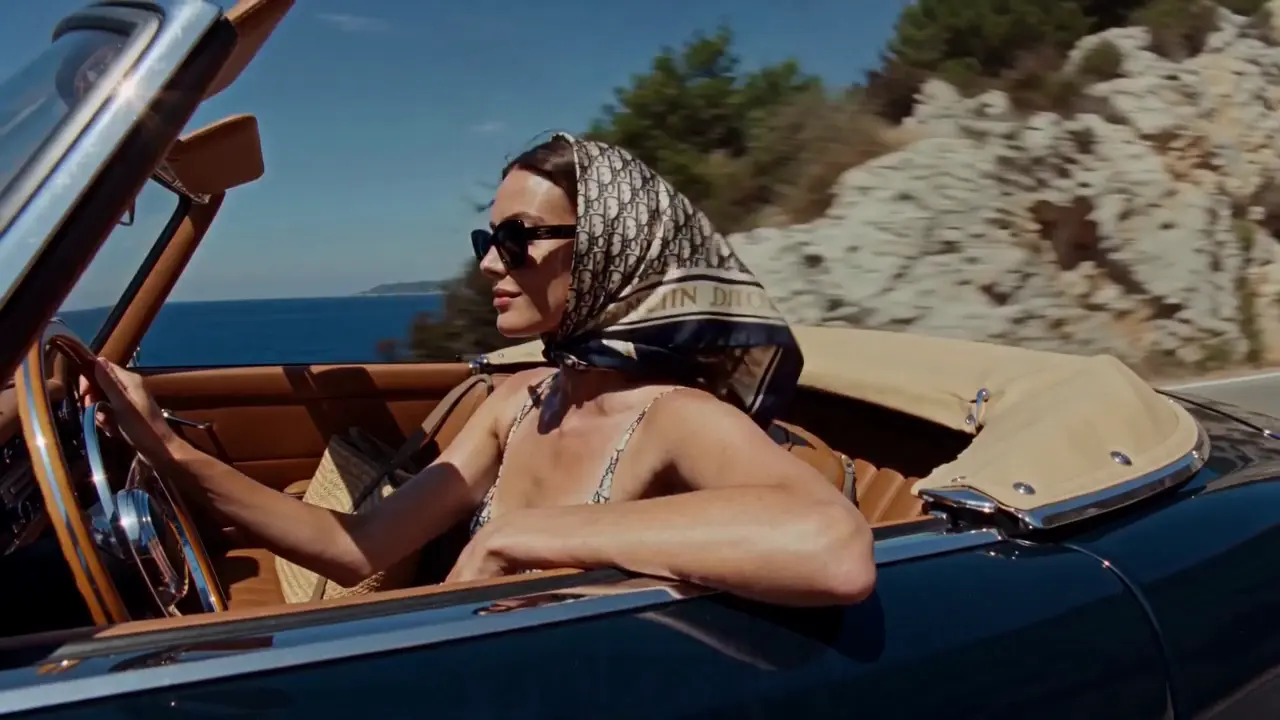
Social stories
Turn a travel memory or a personal idea into a visual direction for a short post. Define the mood, the setting and the moment you want people to notice.
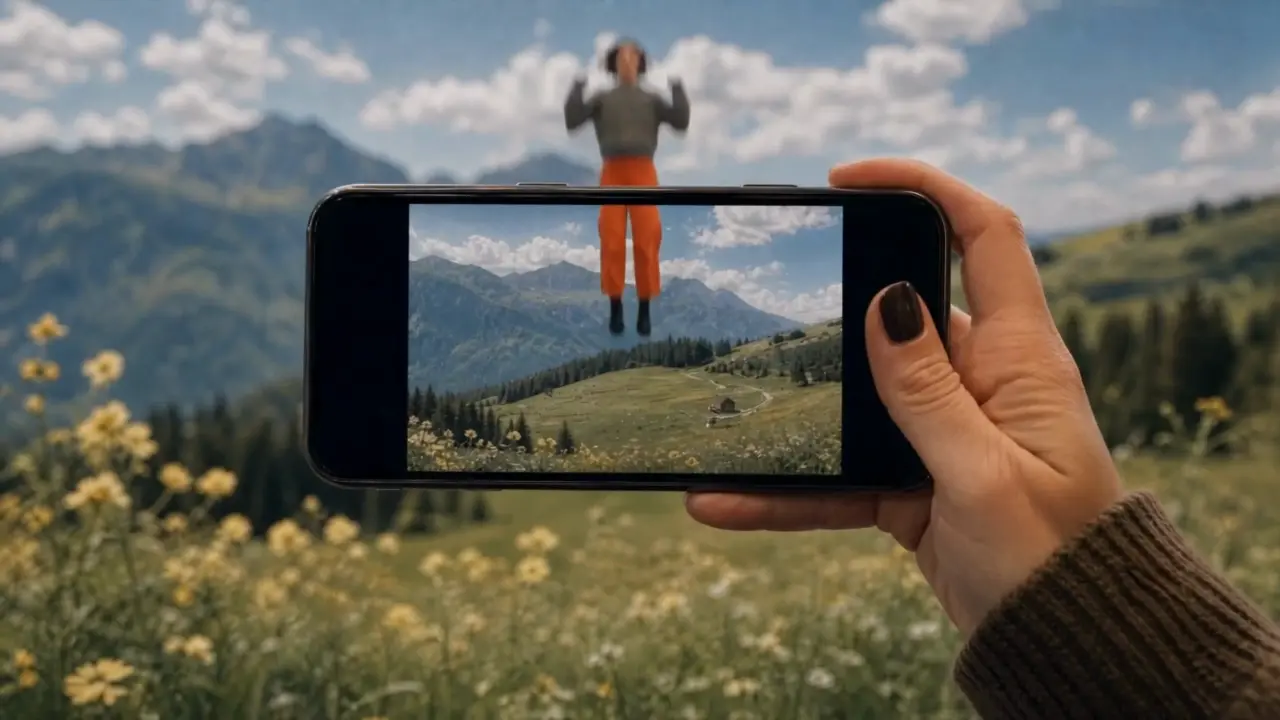
Turn your ideas into images and videos with the Fooocus AI image and video generator. Describe a scene or upload reference material, then choose a model and refine your creation.
Use the AI image and video generator to explore a product launch, a travel memory, or an imagined world. Decide what you want to communicate, then shape the scene and its mood.
Shape the lighting, texture, and composition of your next image. The AI image and video generator offers text-to-image and image editing modes so you can start from an idea or an existing picture.
Combine your subject with its surroundings, lighting and composition. Try a studio portrait, a clean product image or an illustrated world, then refine one detail at a time.
Start from an existing image in editing mode. Describe the changes you want to make to the setting, colors or style, while naming the details you want to keep.
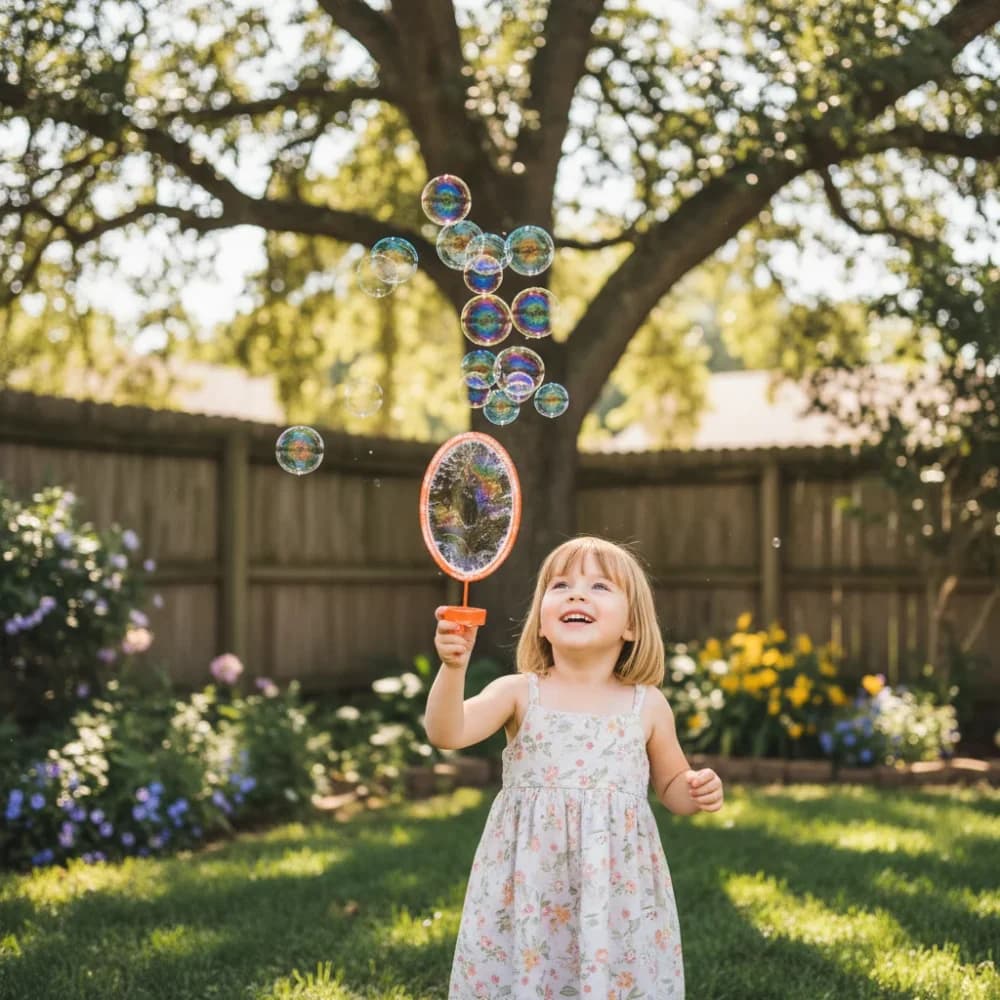
A glance, fabric moving in the wind, a camera approaching its subject. Use the AI image and video generator to describe a moment in motion, starting with text or a suitable reference image.
In image-to-video mode, upload a clear starting frame and describe the movement: a head turn, a passing breeze or a subject walking through the scene.
Describe a close-up, a slow push-in or a wide establishing shot. Set the available duration and aspect ratio for your model, then review the movement and framing in the result.
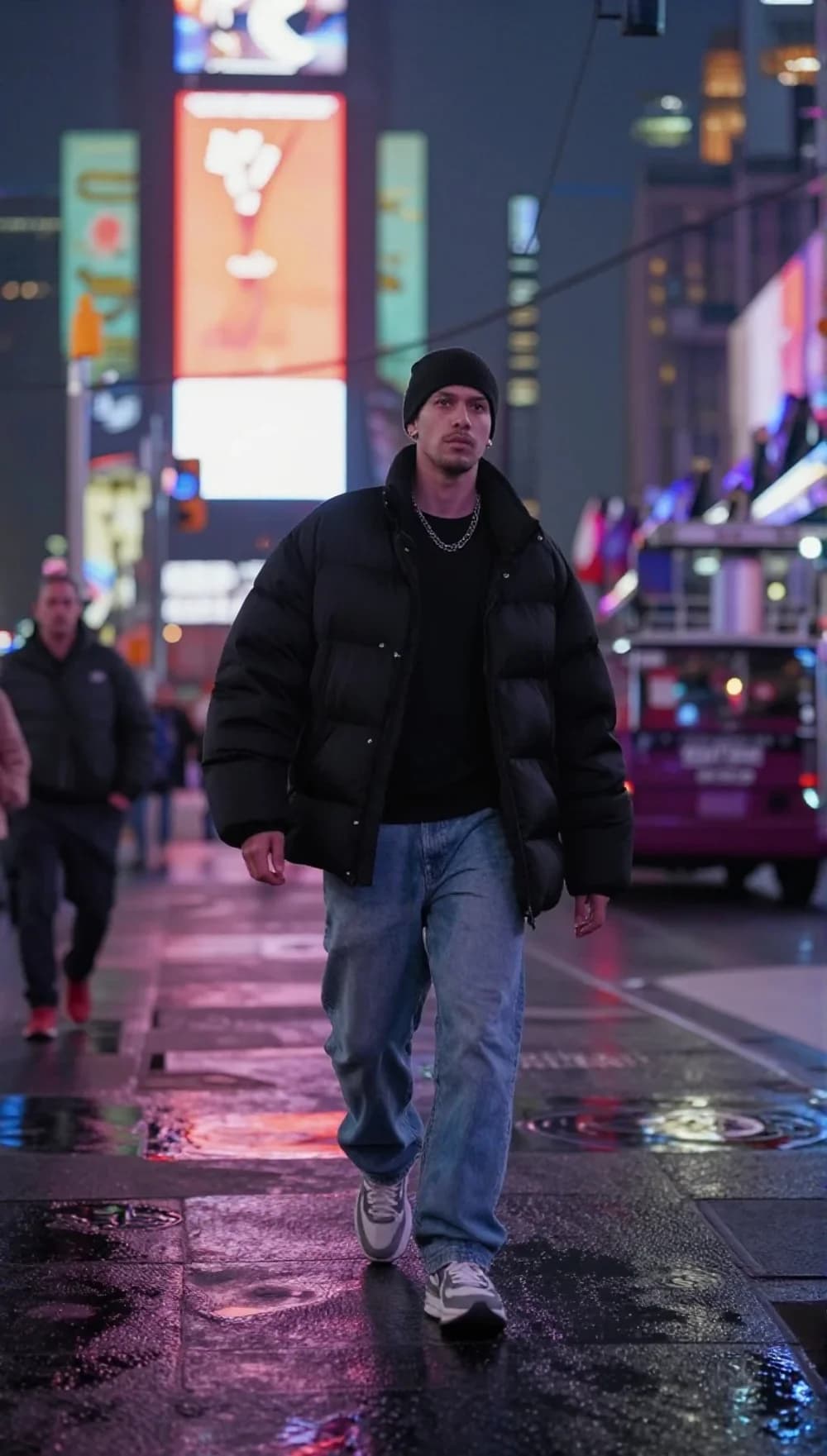
Explore different creative directions in one workspace. Adjust the framing for your intended format, compare versions and keep developing the ones that work.
Turn a travel memory or a personal idea into a visual direction for a short post. Define the mood, the setting and the moment you want people to notice.
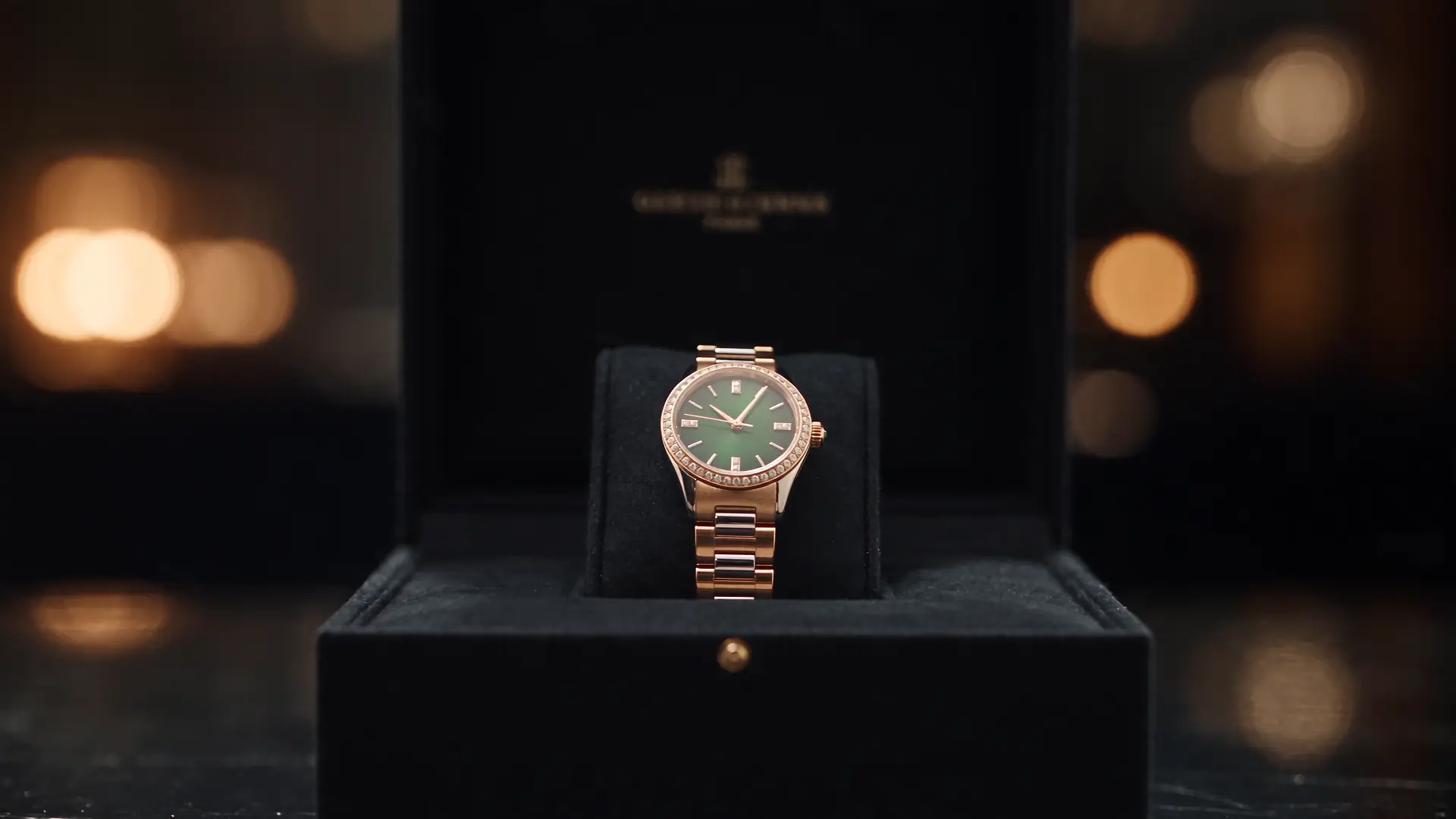
Explore a studio setup, material details or a new setting for your product. Use the images and clips as creative drafts, then check the product details before publishing.
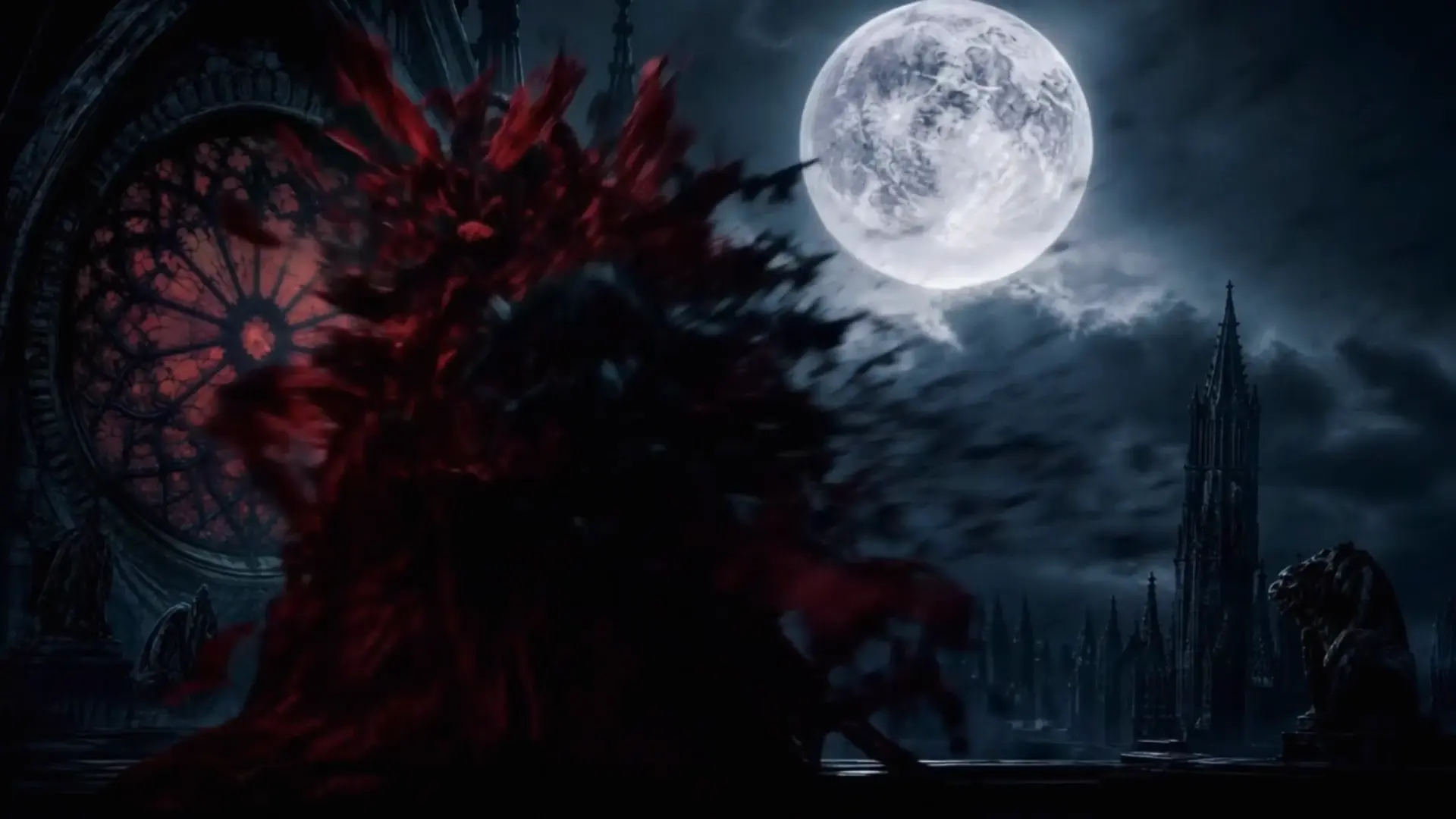
Develop a character, test a location or explore the atmosphere of a scene. Use visual drafts to work through your framing and story ideas.
Select image or video, then choose a model and creation mode. The available settings follow your selection.
Write about the subject, setting, light and style. Add a reference image when your selected mode supports it.
Check the credit estimate before generating. Open History to view the result, then use it again and adjust your next creation.
Explore apps that spark your interest and find inspiration for your next creation.
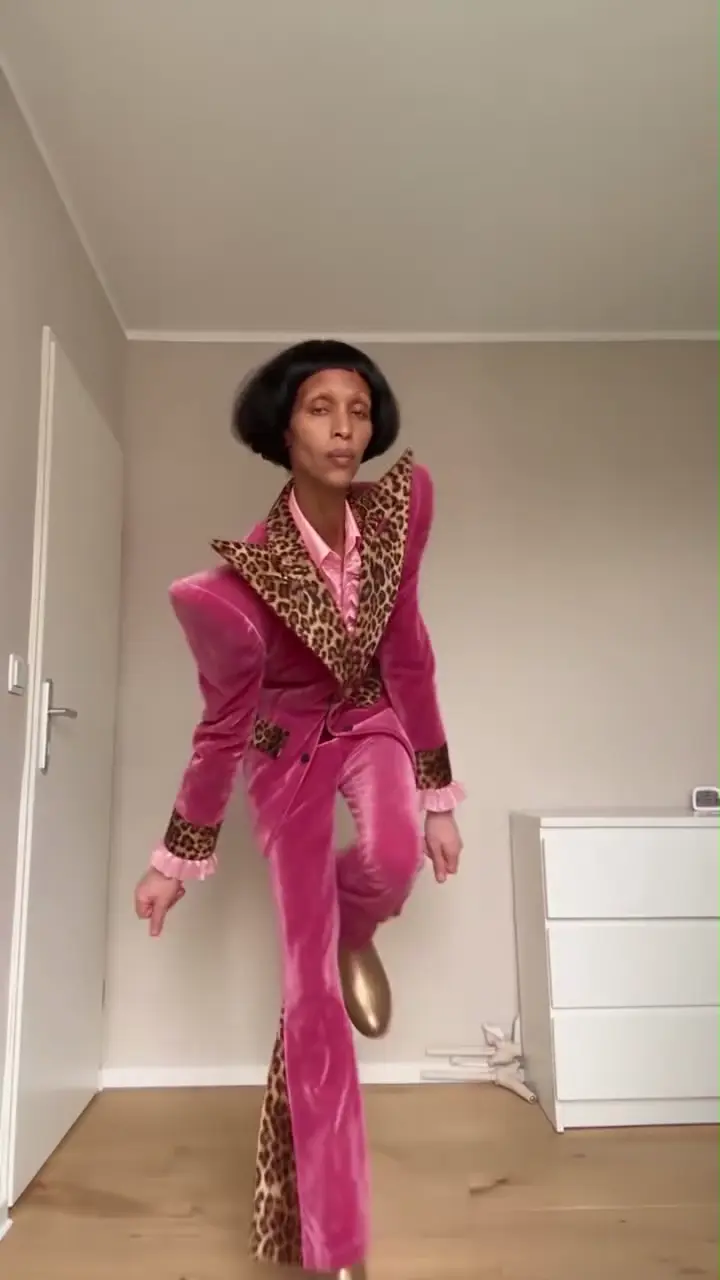
Turn a portrait or pet photo into a dance video. Choose a style and make the movement your own.
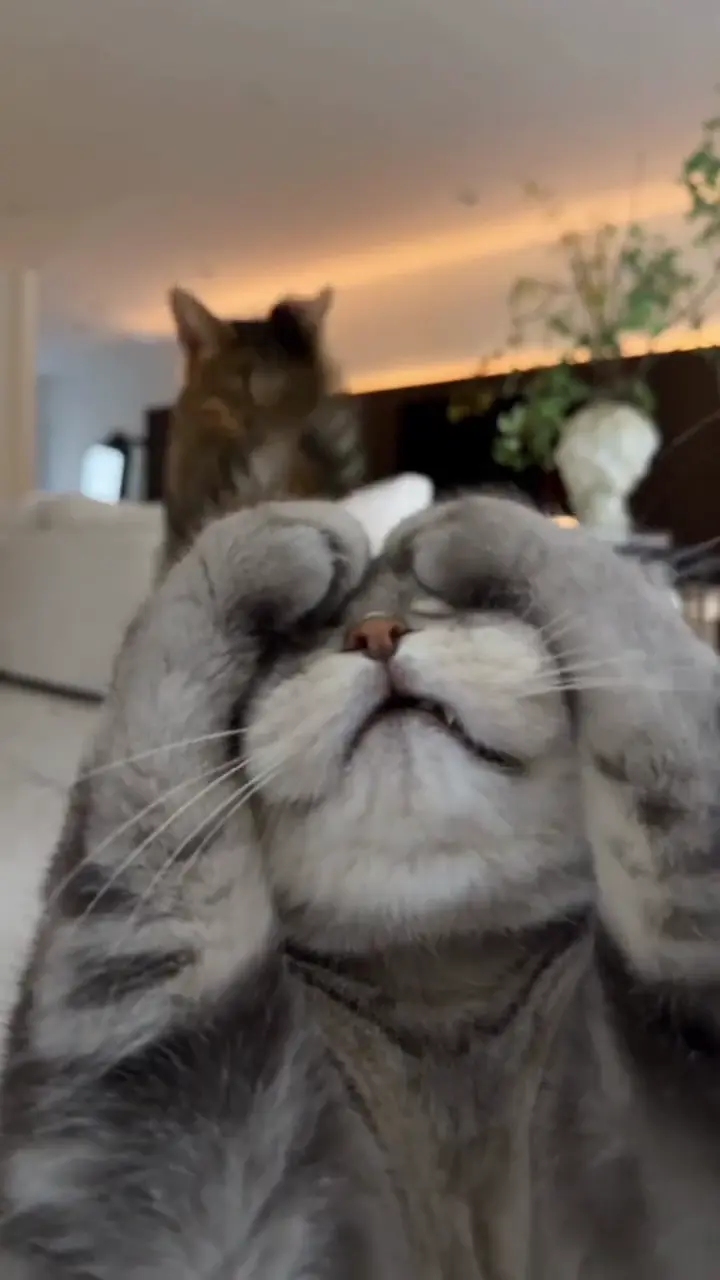
Animate your cat with playful paw lifts or Toc Toc-inspired moves.
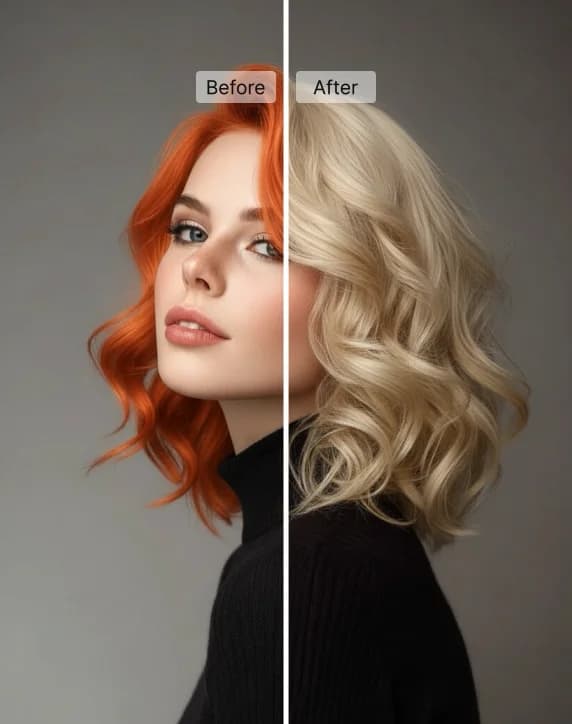
Try a new hair color on your photo with preset shades or a custom color.
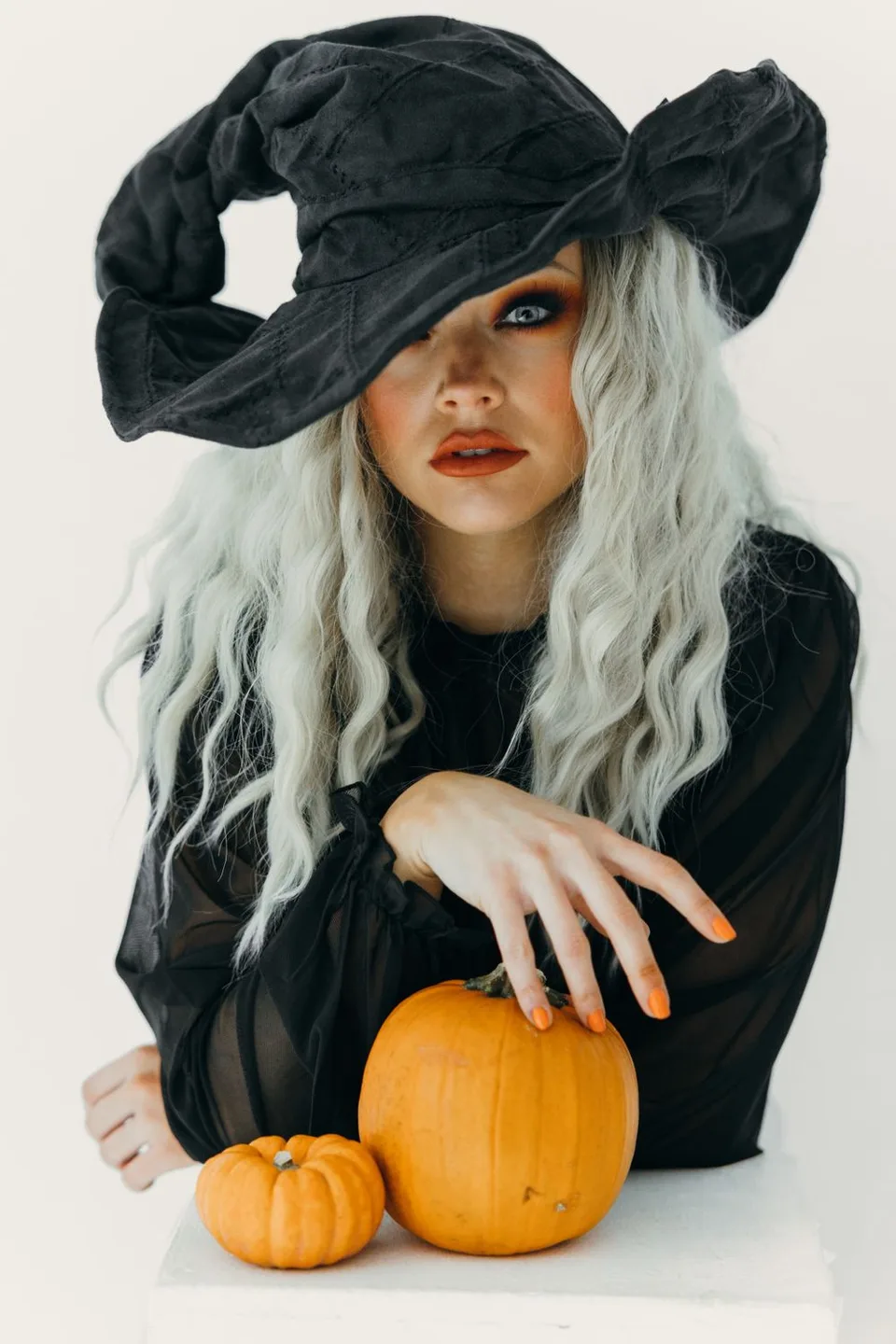
Try eight costume looks from your photo, or make a witch-on-a-broom video.
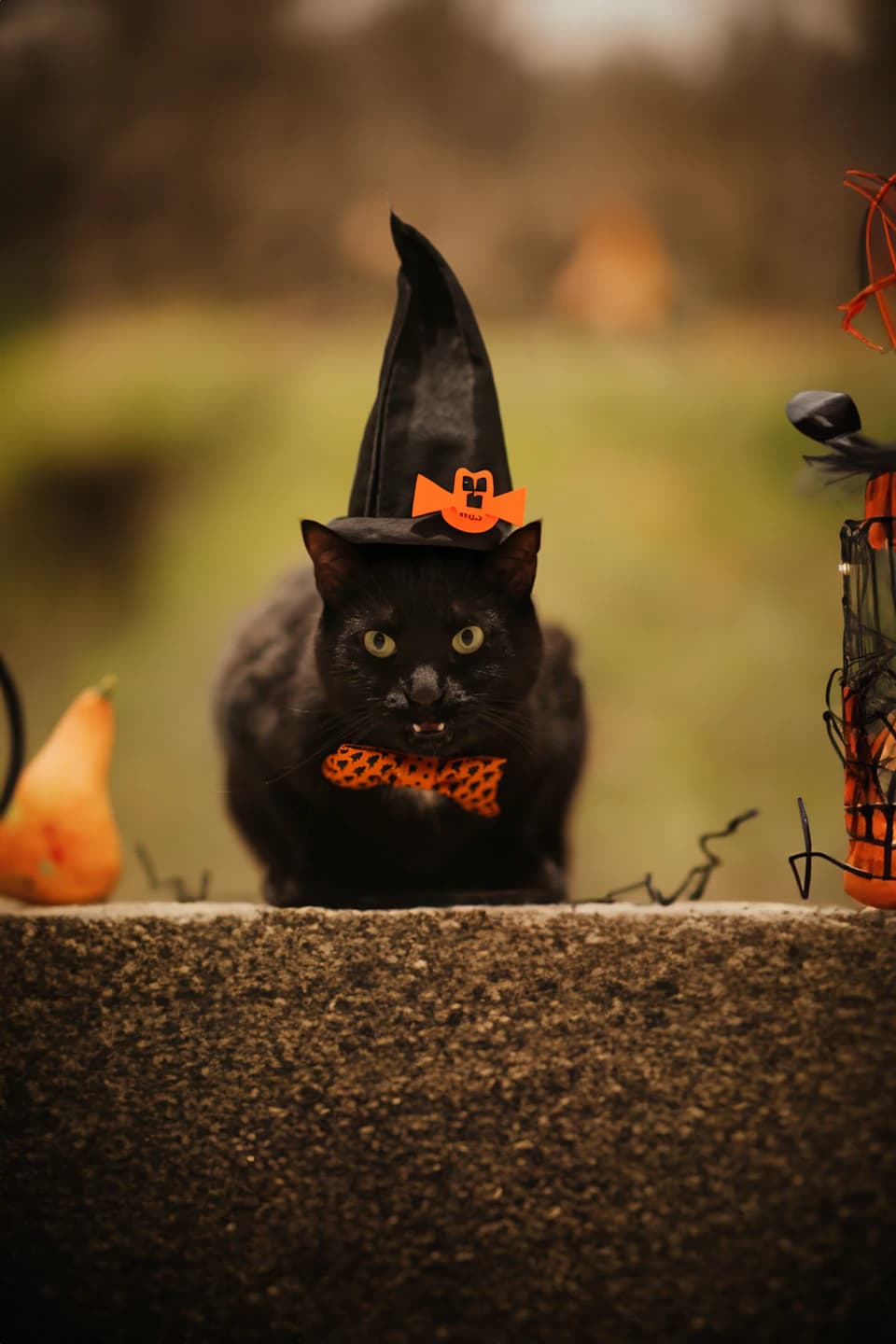
Dress up your dog or cat in eight original Halloween looks.
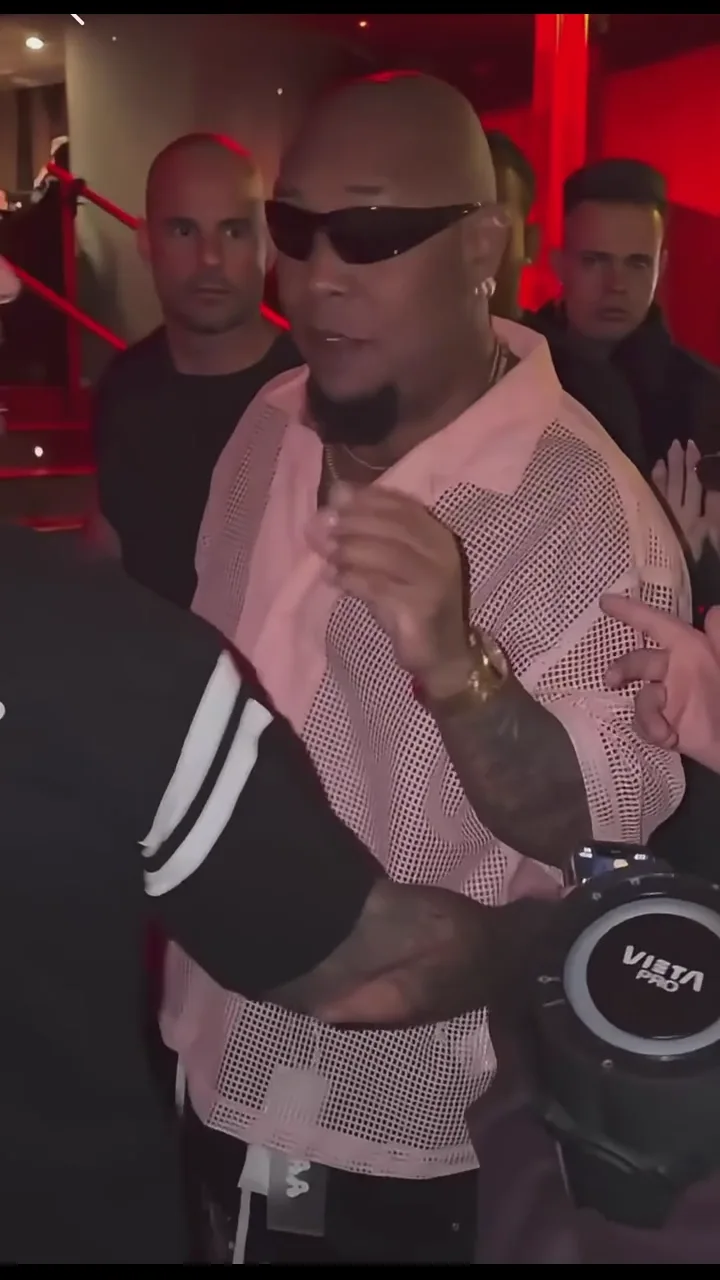
Create your own street freestyle video from a portrait.
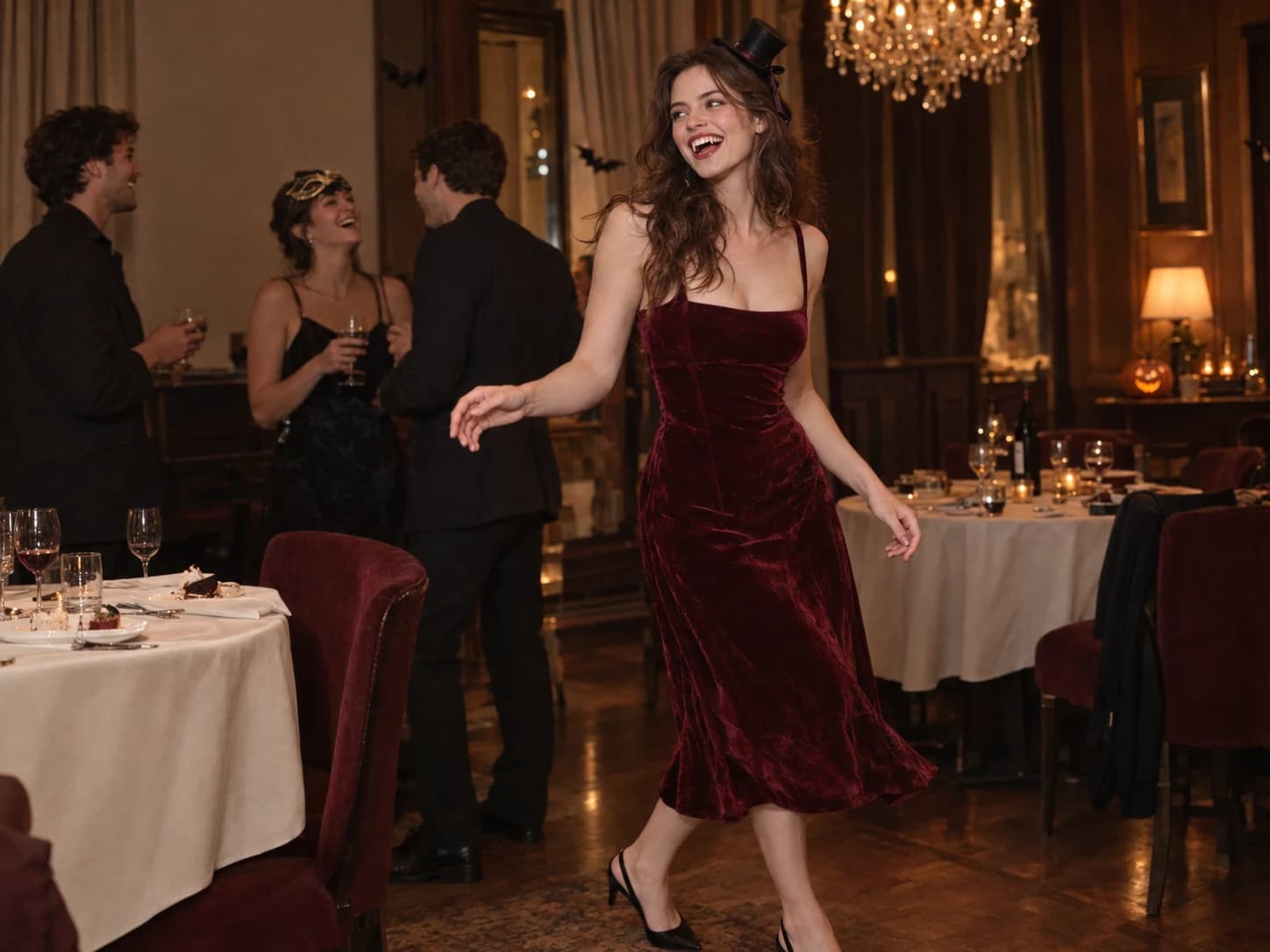
Turn a photo into your own Burning Bridges party video.
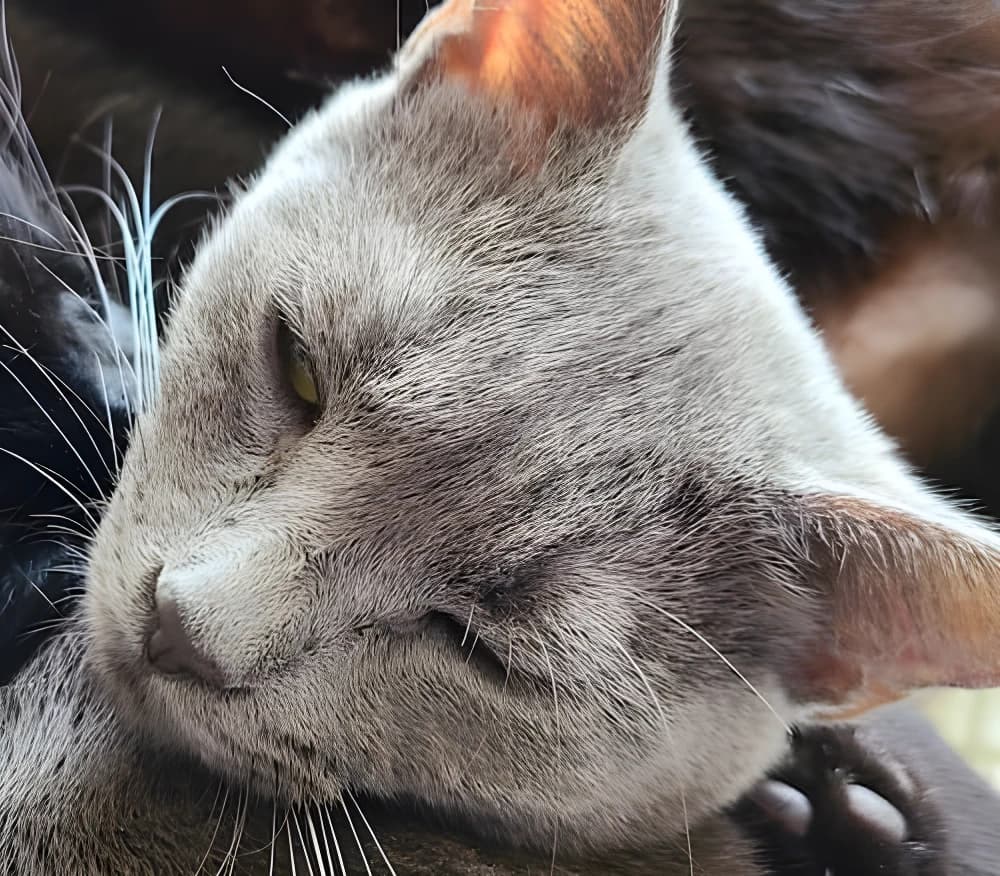
Enlarge photos and optionally enhance faces for clearer, larger images.
Explore image and video models in the AI image and video generator. Start with your source material and choose the model that fits your creative task.
GPT Image 2 combines detailed prompt understanding with image editing for product visuals, illustrations, and ads.
Nano Banana Pro pairs clear text rendering with detailed image generation for posters, infographics, and product mockups.
Seedream 5 Pro combines realistic lighting, text rendering, and image editing for portraits, posters, and product visuals.
FLUX.2 combines detailed lighting, composition control, and typography for product photography and graphic design.
Seedance 2.5 combines multi-shot direction with visual and audio references for connected scenes and sound control.
WAN 3.0 combines cinematic visuals, reference guidance, and camera control for videos with coherent motion.
MiniMax H3 brings character performances, camera movement, and voice control together for narrative videos.
Gemini Omni offers conversational video editing with visual references for subjects, motion, and scenes.
Yes. Text-to-image and text-to-video modes start with a prompt. Image editing and image-to-video modes require reference material according to the selected model.
Start with your task: generating an image, editing an image or creating a video. Choose an available model for that mode and check its settings. Supported inputs and output options vary by model.
Start with the subject and setting, then add the light, style or camera direction. For video, focus on one main action, such as a person looking toward a window while the camera moves closer. Change one detail at a time to make versions easier to compare.
The AI image and video generator shows an estimated credit cost on the generation button based on your model, settings, and quantity. Check it before submitting; changing these choices can change the cost.
Open History in this workspace to review your generation tasks and results. Use the available actions on a completed result to download it or create again.