
Social stories
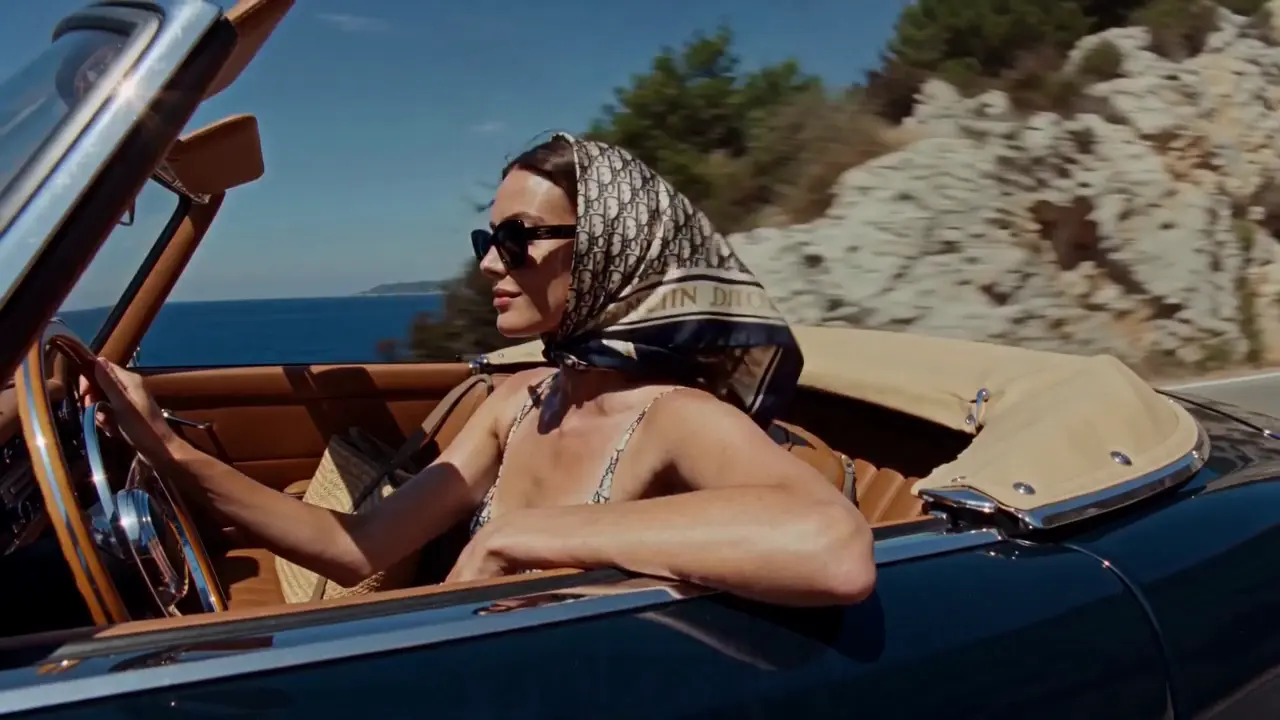
Turn a travel memory or a personal idea into a visual direction for a short post. Define the mood, the setting and the moment you want people to notice.
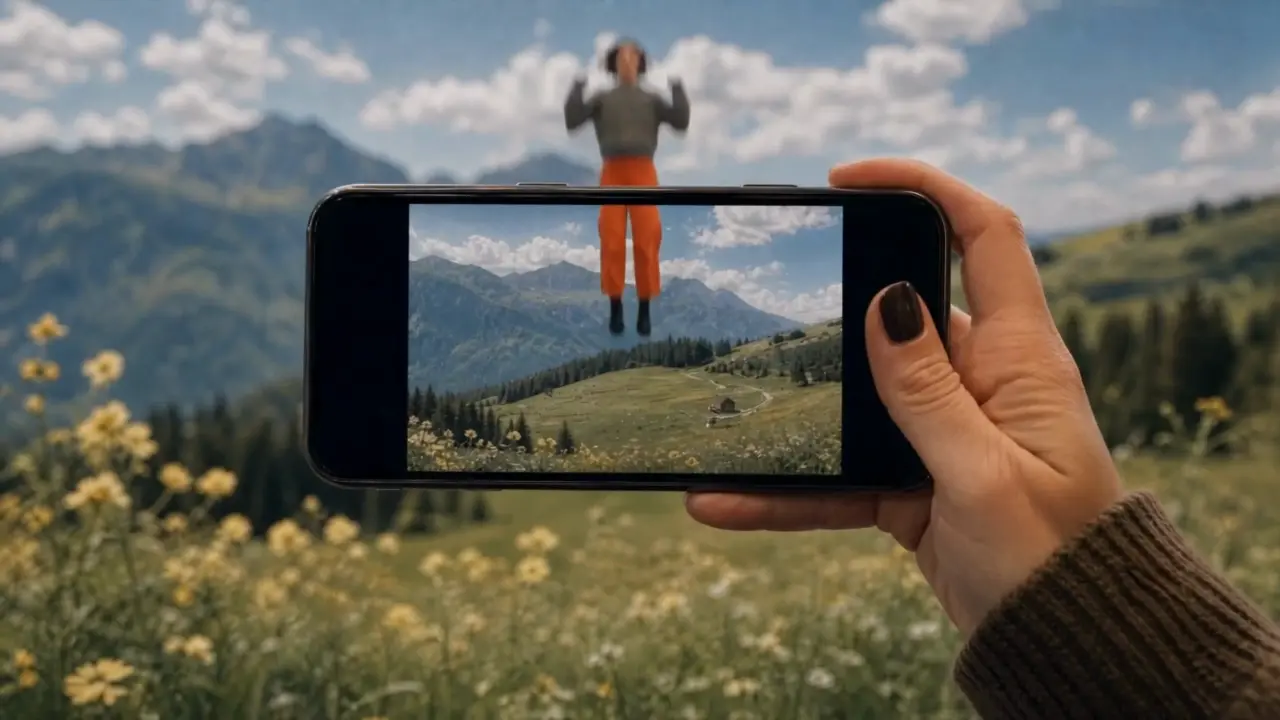
Turn your ideas into images and videos with the Fooocus AI image and video generator. Describe a scene or upload reference material, then choose a model and refine your creation.
Use the AI image and video generator to explore a product launch, a travel memory, or an imagined world. Decide what you want to communicate, then shape the scene and its mood.
Shape the lighting, texture, and composition of your next image. The AI image and video generator offers text-to-image and image editing modes so you can start from an idea or an existing picture.
Combine your subject with its surroundings, lighting and composition. Try a studio portrait, a clean product image or an illustrated world, then refine one detail at a time.
Start from an existing image in editing mode. Describe the changes you want to make to the setting, colors or style, while naming the details you want to keep.
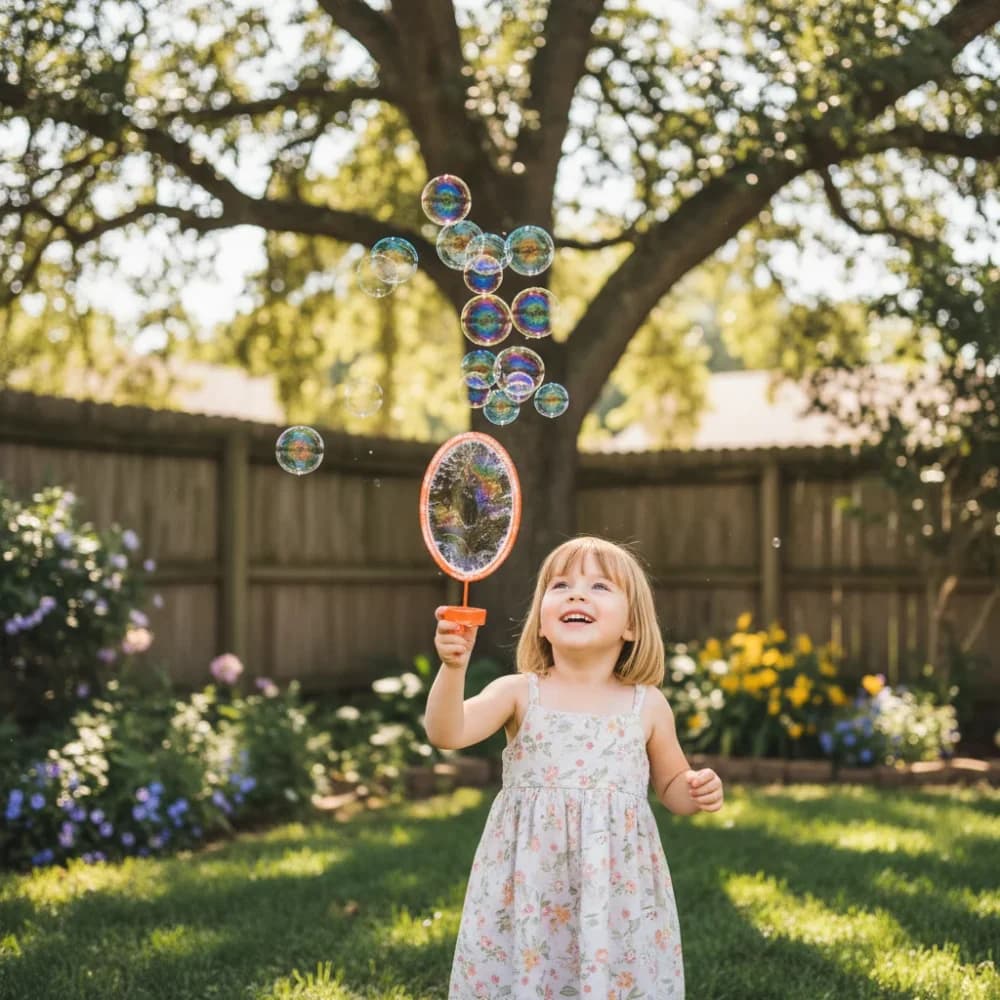
A glance, fabric moving in the wind, a camera approaching its subject. Use the AI image and video generator to describe a moment in motion, starting with text or a suitable reference image.
In image-to-video mode, upload a clear starting frame and describe the movement: a head turn, a passing breeze or a subject walking through the scene.
Describe a close-up, a slow push-in or a wide establishing shot. Set the available duration and aspect ratio for your model, then review the movement and framing in the result.
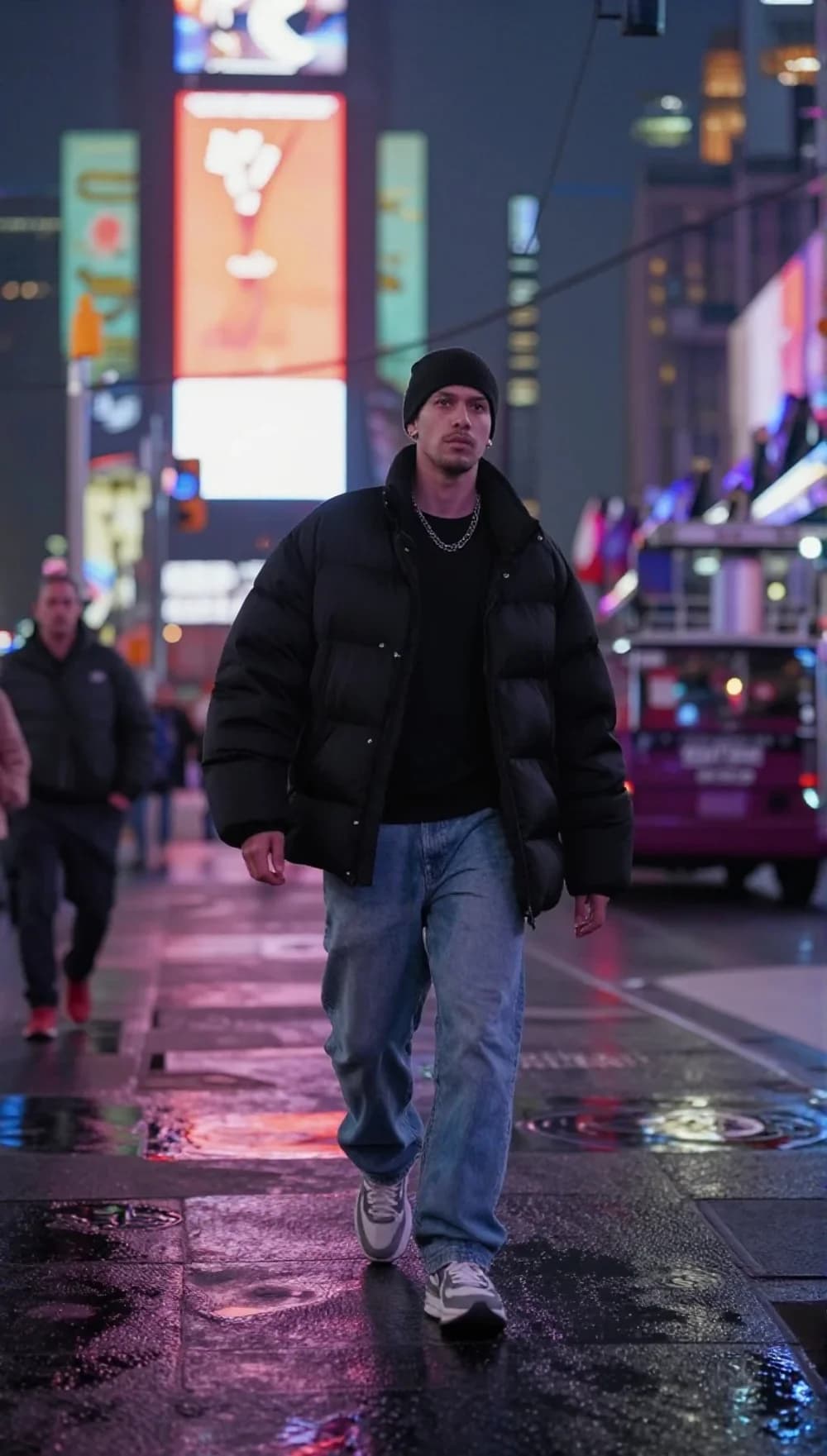
Explore different creative directions in one workspace. Adjust the framing for your intended format, compare versions and keep developing the ones that work.
Turn a travel memory or a personal idea into a visual direction for a short post. Define the mood, the setting and the moment you want people to notice.
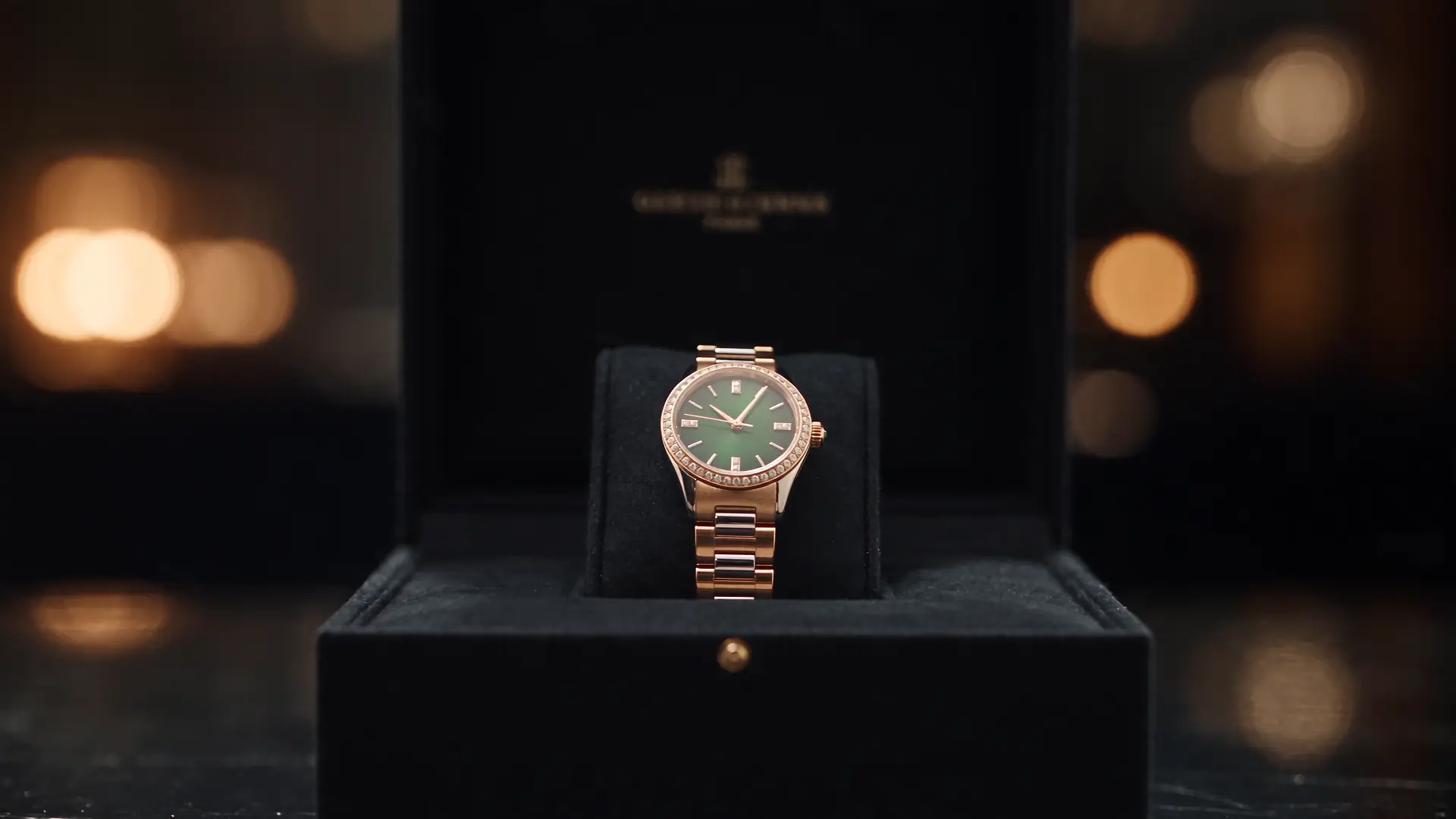
Explore a studio setup, material details or a new setting for your product. Use the images and clips as creative drafts, then check the product details before publishing.
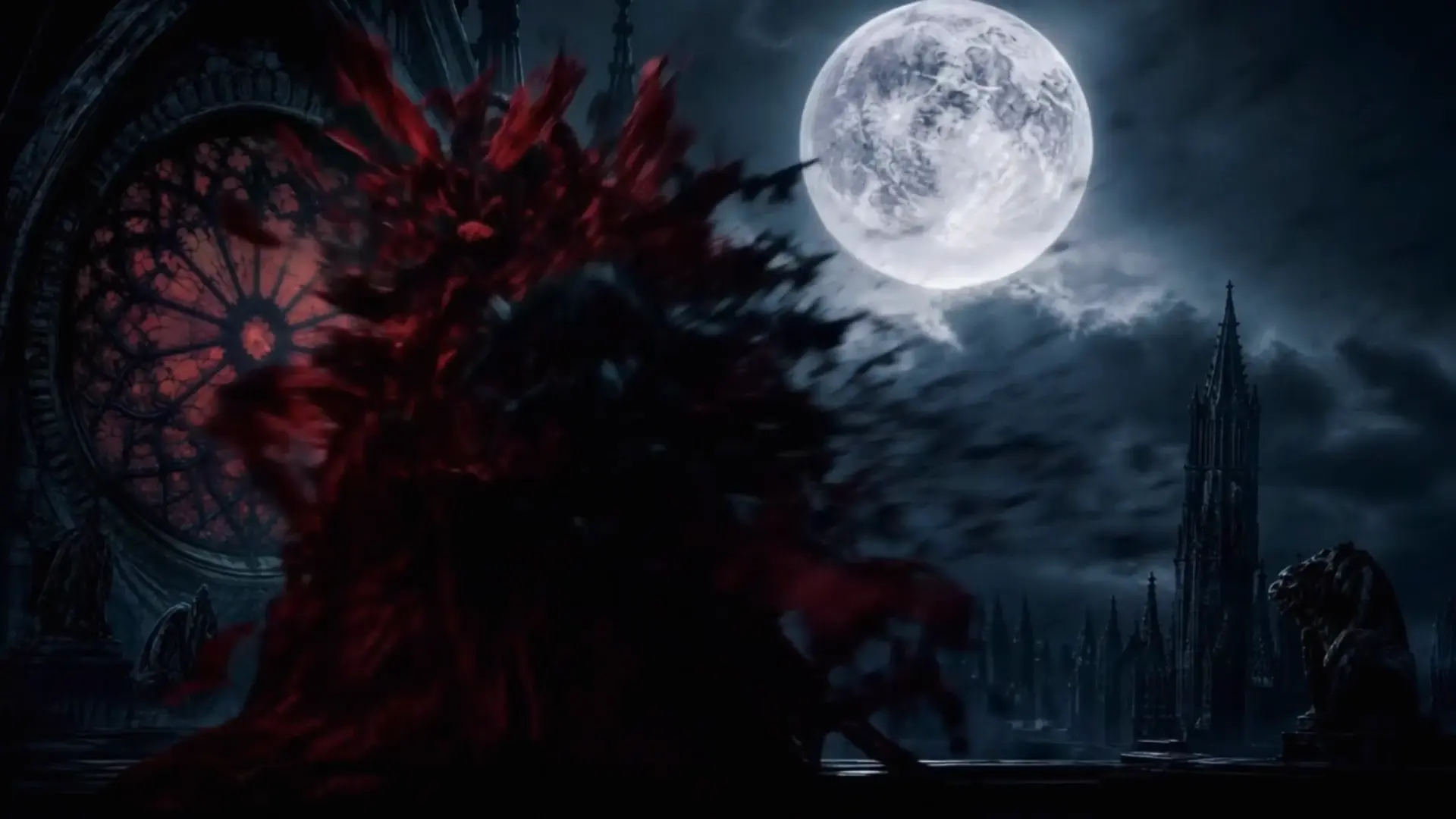
Develop a character, test a location or explore the atmosphere of a scene. Use visual drafts to work through your framing and story ideas.
Select image or video, then choose a model and creation mode. The available settings follow your selection.
Write about the subject, setting, light and style. Add a reference image when your selected mode supports it.
Check the credit estimate before generating. Open History to view the result, then use it again and adjust your next creation.
Khám phá những ứng dụng bạn quan tâm và tìm cảm hứng cho sáng tạo tiếp theo.
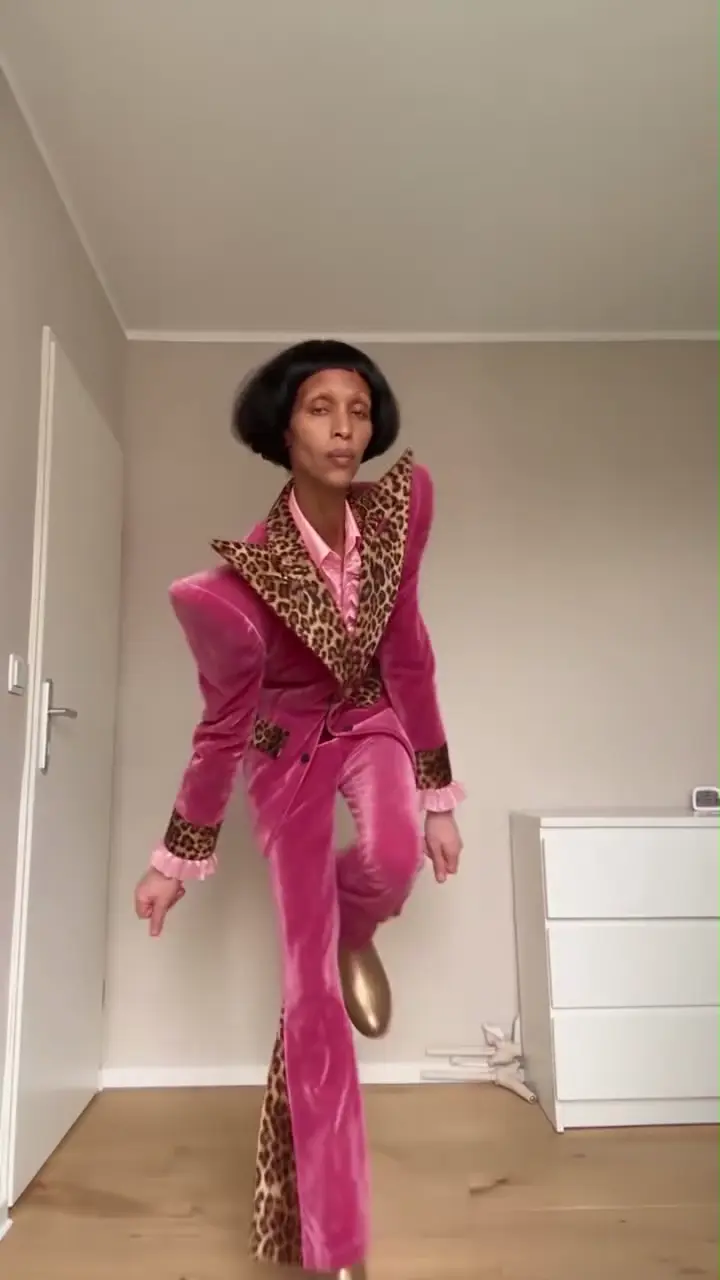
Biến ảnh chân dung hoặc ảnh thú cưng thành video khiêu vũ. Chọn một phong cách và biến chuyển động của riêng bạn.
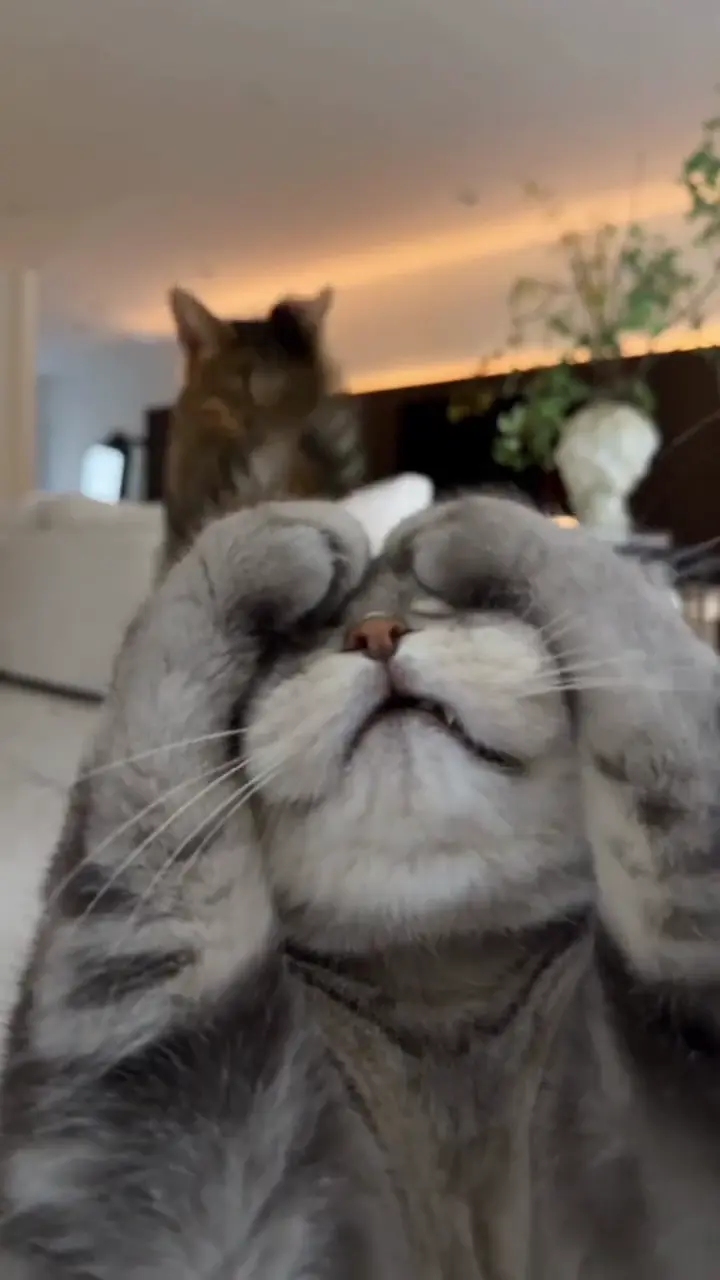
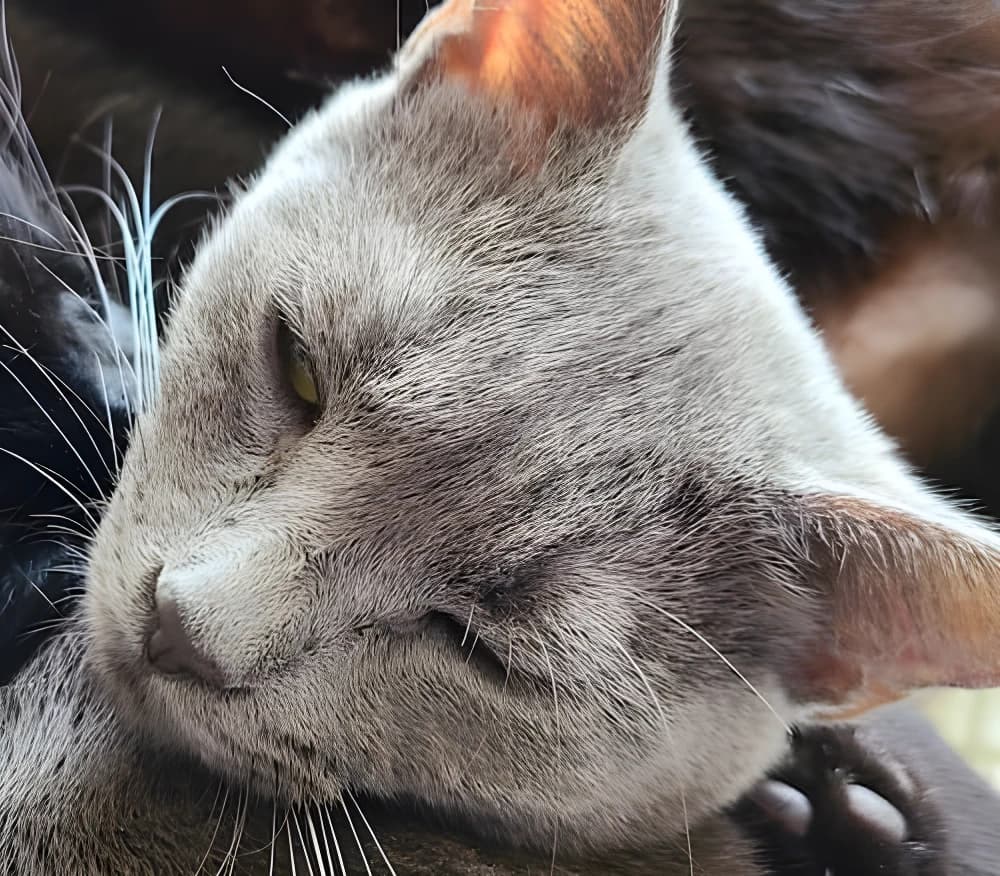
Làm sinh động chú mèo của bạn bằng những động tác nâng chân vui nhộn hoặc các động tác lấy cảm hứng từ Toc Toc.
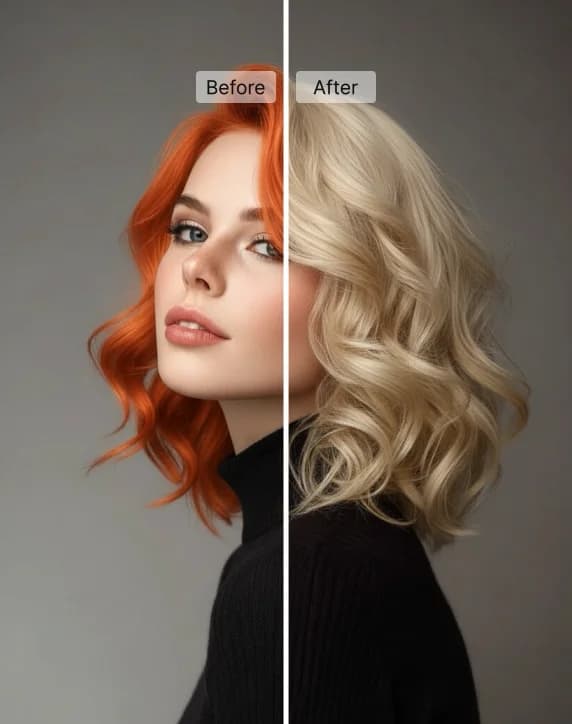
Thử màu tóc mới trên ảnh của bạn với các tông màu có sẵn hoặc màu tùy chọn.
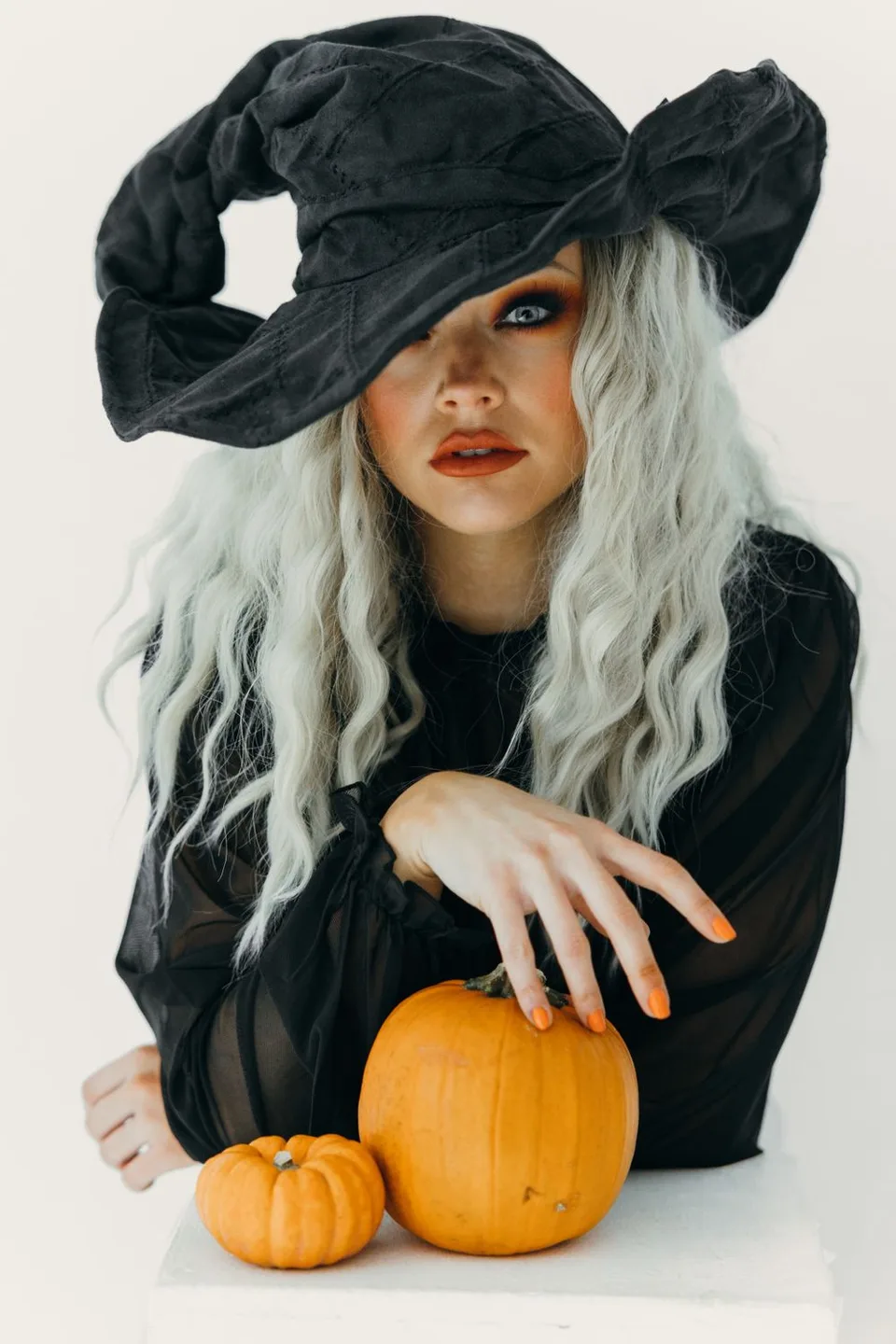
Thử tám trang phục từ ảnh của bạn hoặc tạo video phù thủy cưỡi chổi.

Diện cho chó hoặc mèo của bạn tám bộ trang phục Halloween độc đáo.
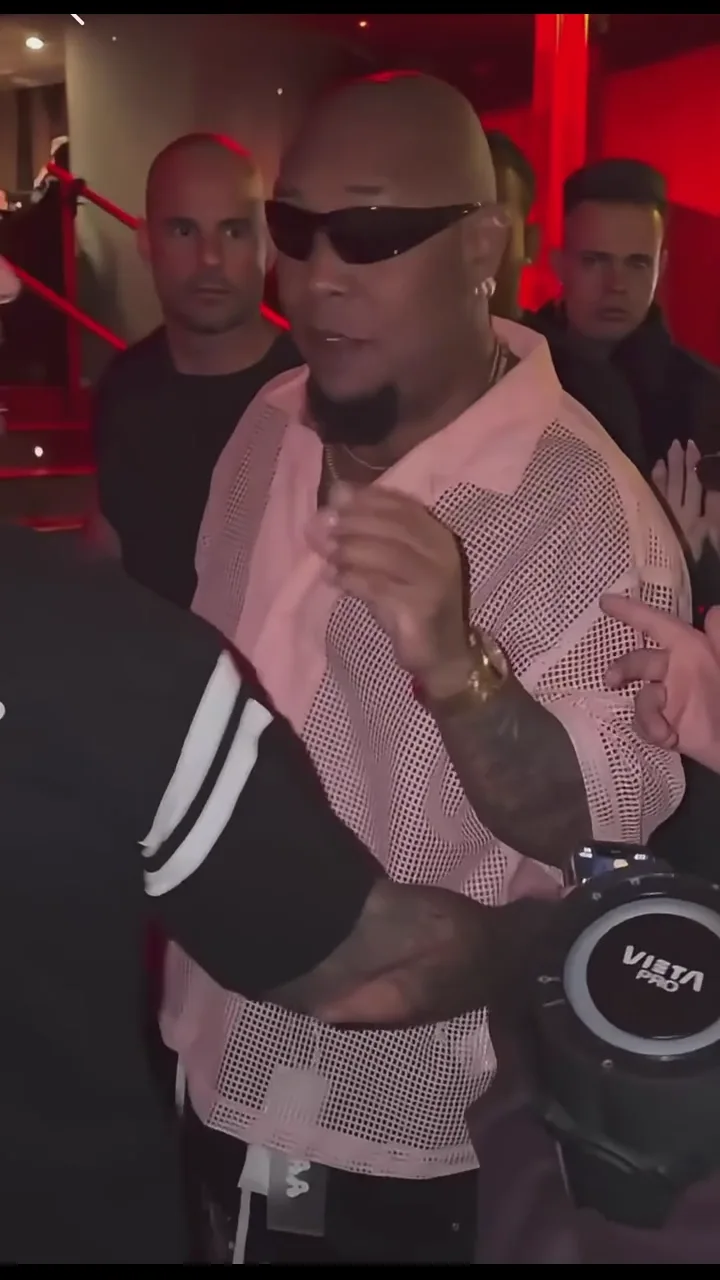
Tạo video freestyle đường phố của riêng bạn từ ảnh chân dung.
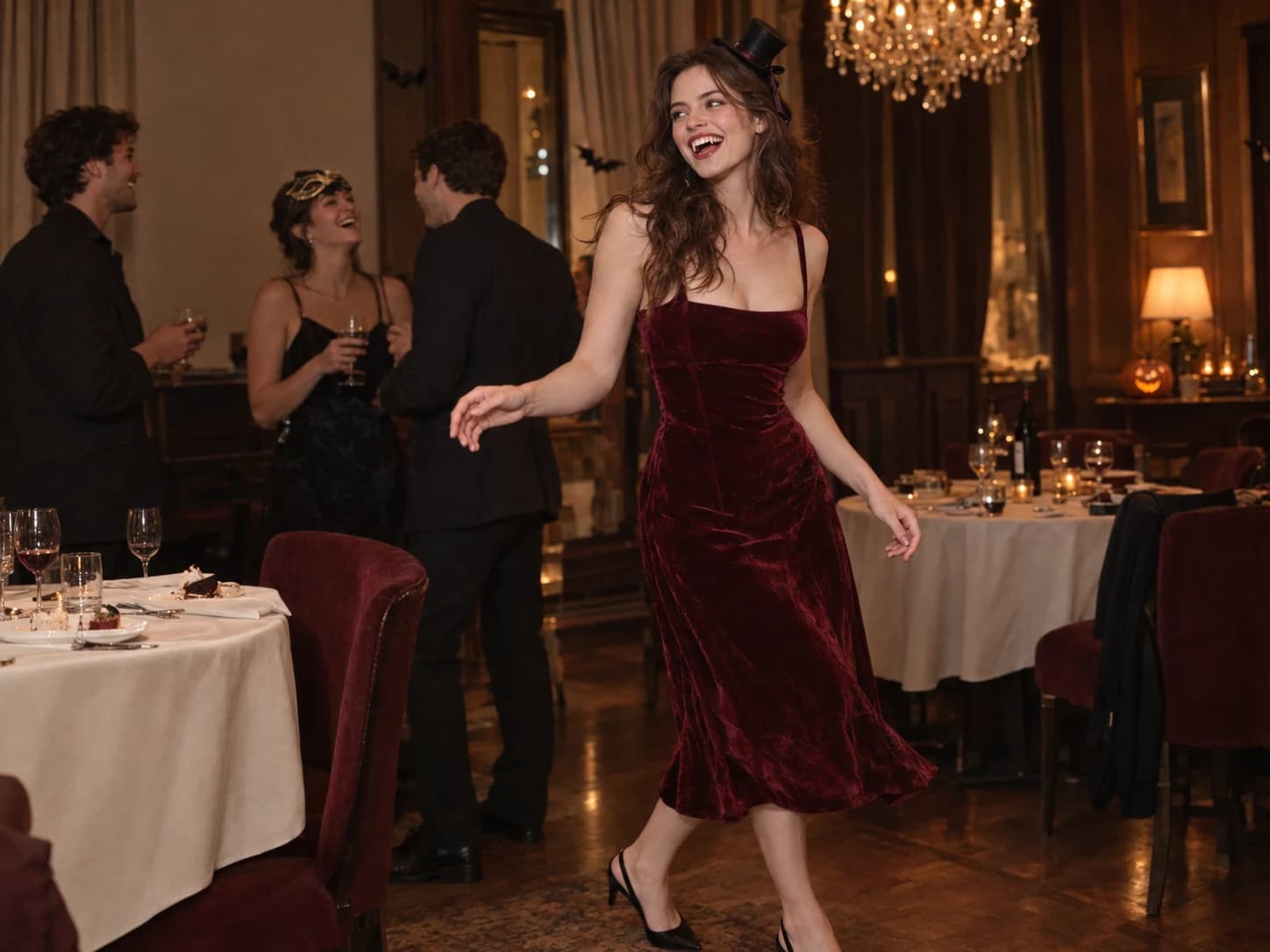
Biến một bức ảnh thành video tiệc Burning Bridges của riêng bạn.
Phóng lớn ảnh và tùy chọn cải thiện khuôn mặt để làm rõ chi tiết.
Explore image and video models in the AI image and video generator. Start with your source material and choose the model that fits your creative task.
GPT Image 2 kết hợp khả năng hiểu chỉ dẫn chi tiết với chỉnh sửa ảnh để tạo hình sản phẩm, minh họa và quảng cáo.
Nano Banana Pro kết hợp chữ rõ ràng với hình ảnh chi tiết cho áp phích, đồ họa thông tin và mô hình sản phẩm.
Seedream 5 Pro kết hợp ánh sáng chân thực, kết xuất văn bản và chỉnh sửa hình ảnh để tạo ảnh chân dung, áp phích và hình ảnh sản phẩm.
FLUX.2 kết hợp ánh sáng chi tiết, kiểm soát bố cục và chữ trong ảnh sản phẩm và thiết kế đồ họa.
Seedance 2.5 kết hợp chỉ đạo nhiều cảnh quay với tư liệu hình ảnh và âm thanh để nối cảnh liền mạch và kiểm soát tiếng.
WAN 3.0 kết hợp hình ảnh điện ảnh, tư liệu tham chiếu và điều khiển máy quay để tạo video có chuyển động liền mạch.
MiniMax H3 kết hợp diễn xuất nhân vật, chuyển động máy quay và kiểm soát giọng nói cho video kể chuyện.
Gemini Omni cho phép chỉnh sửa video qua hội thoại, dùng tư liệu hình ảnh cho chủ thể, chuyển động và bối cảnh.
Yes. Text-to-image and text-to-video modes start with a prompt. Image editing and image-to-video modes require reference material according to the selected model.
Start with your task: generating an image, editing an image or creating a video. Choose an available model for that mode and check its settings. Supported inputs and output options vary by model.
Start with the subject and setting, then add the light, style or camera direction. For video, focus on one main action, such as a person looking toward a window while the camera moves closer. Change one detail at a time to make versions easier to compare.
The AI image and video generator shows an estimated credit cost on the generation button based on your model, settings, and quantity. Check it before submitting; changing these choices can change the cost.
Open History in this workspace to review your generation tasks and results. Use the available actions on a completed result to download it or create again.