
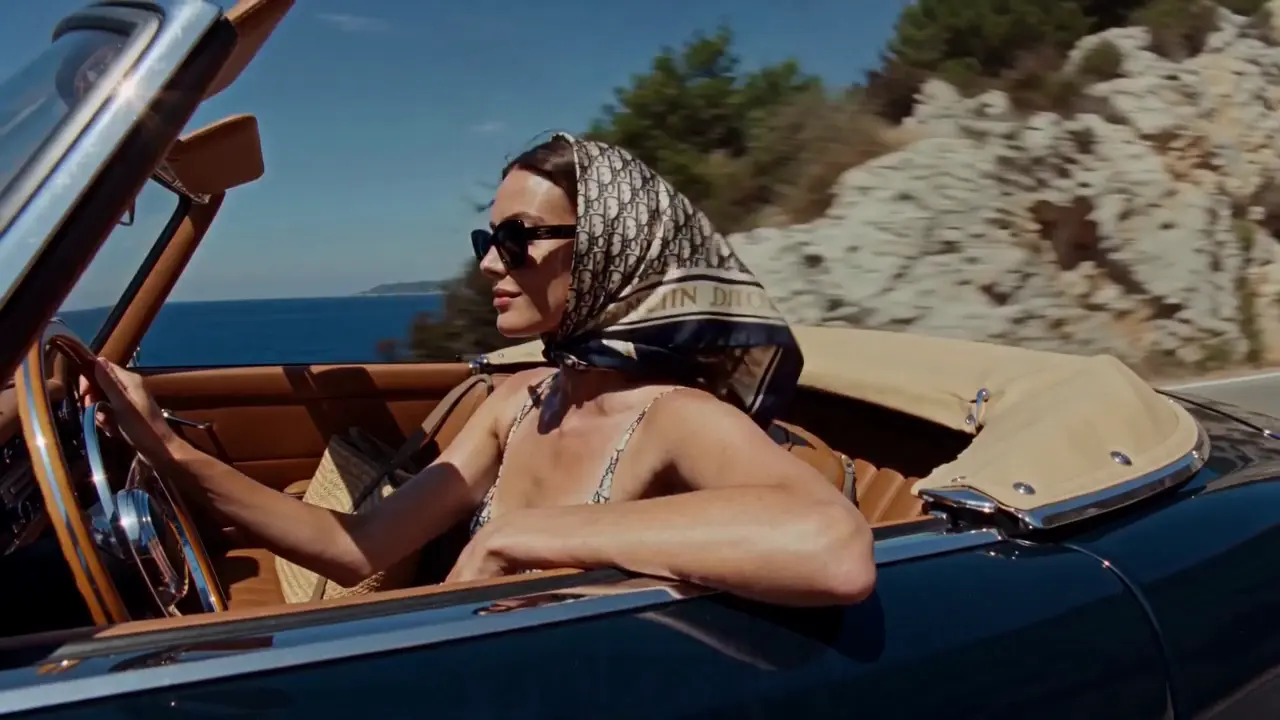
Social stories
Turn a travel memory or a personal idea into a visual direction for a short post. Define the mood, the setting and the moment you want people to notice.
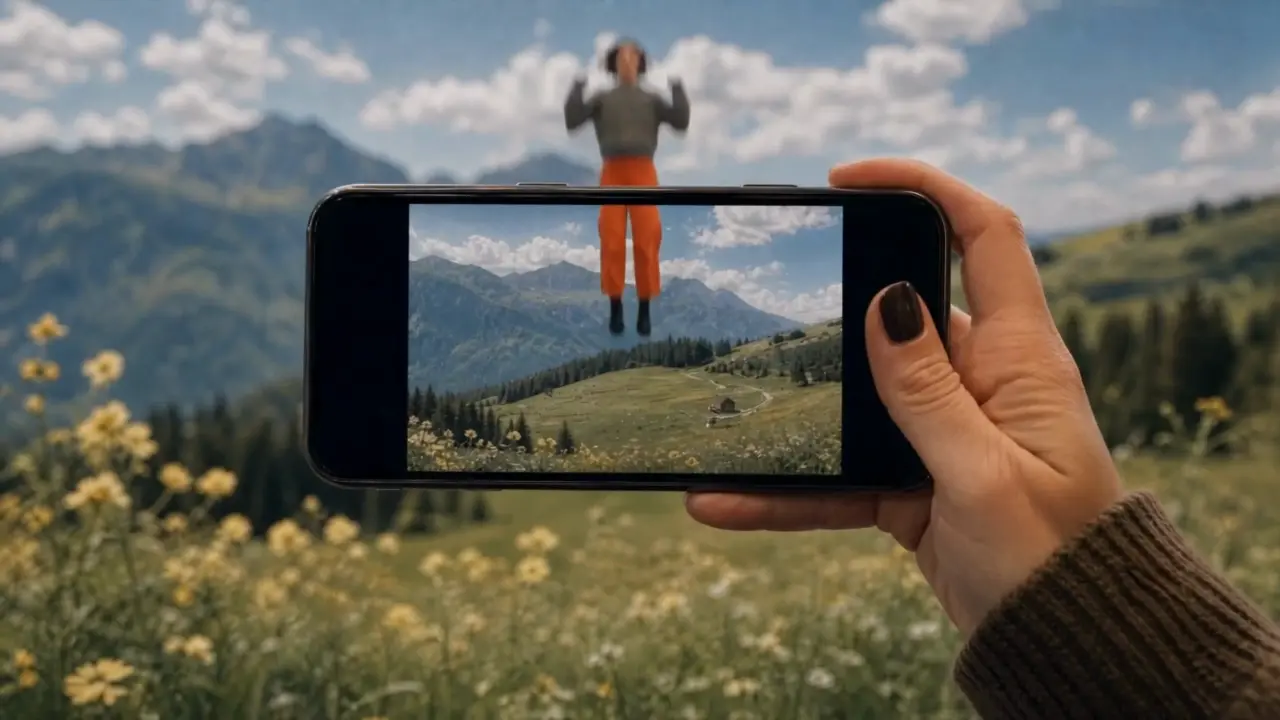
Turn your ideas into images and videos with the Fooocus AI image and video generator. Describe a scene or upload reference material, then choose a model and refine your creation.
Use the AI image and video generator to explore a product launch, a travel memory, or an imagined world. Decide what you want to communicate, then shape the scene and its mood.
Shape the lighting, texture, and composition of your next image. The AI image and video generator offers text-to-image and image editing modes so you can start from an idea or an existing picture.
Combine your subject with its surroundings, lighting and composition. Try a studio portrait, a clean product image or an illustrated world, then refine one detail at a time.
Start from an existing image in editing mode. Describe the changes you want to make to the setting, colors or style, while naming the details you want to keep.
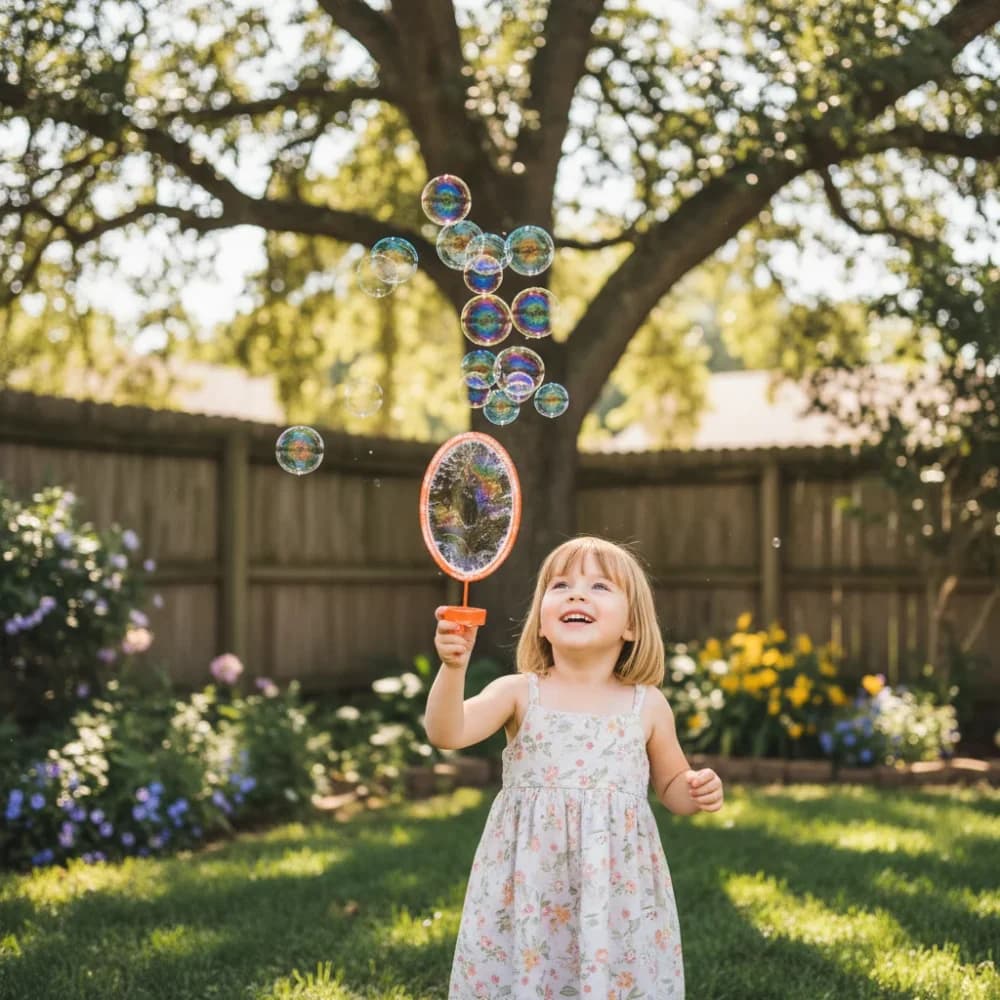
A glance, fabric moving in the wind, a camera approaching its subject. Use the AI image and video generator to describe a moment in motion, starting with text or a suitable reference image.
In image-to-video mode, upload a clear starting frame and describe the movement: a head turn, a passing breeze or a subject walking through the scene.
Describe a close-up, a slow push-in or a wide establishing shot. Set the available duration and aspect ratio for your model, then review the movement and framing in the result.
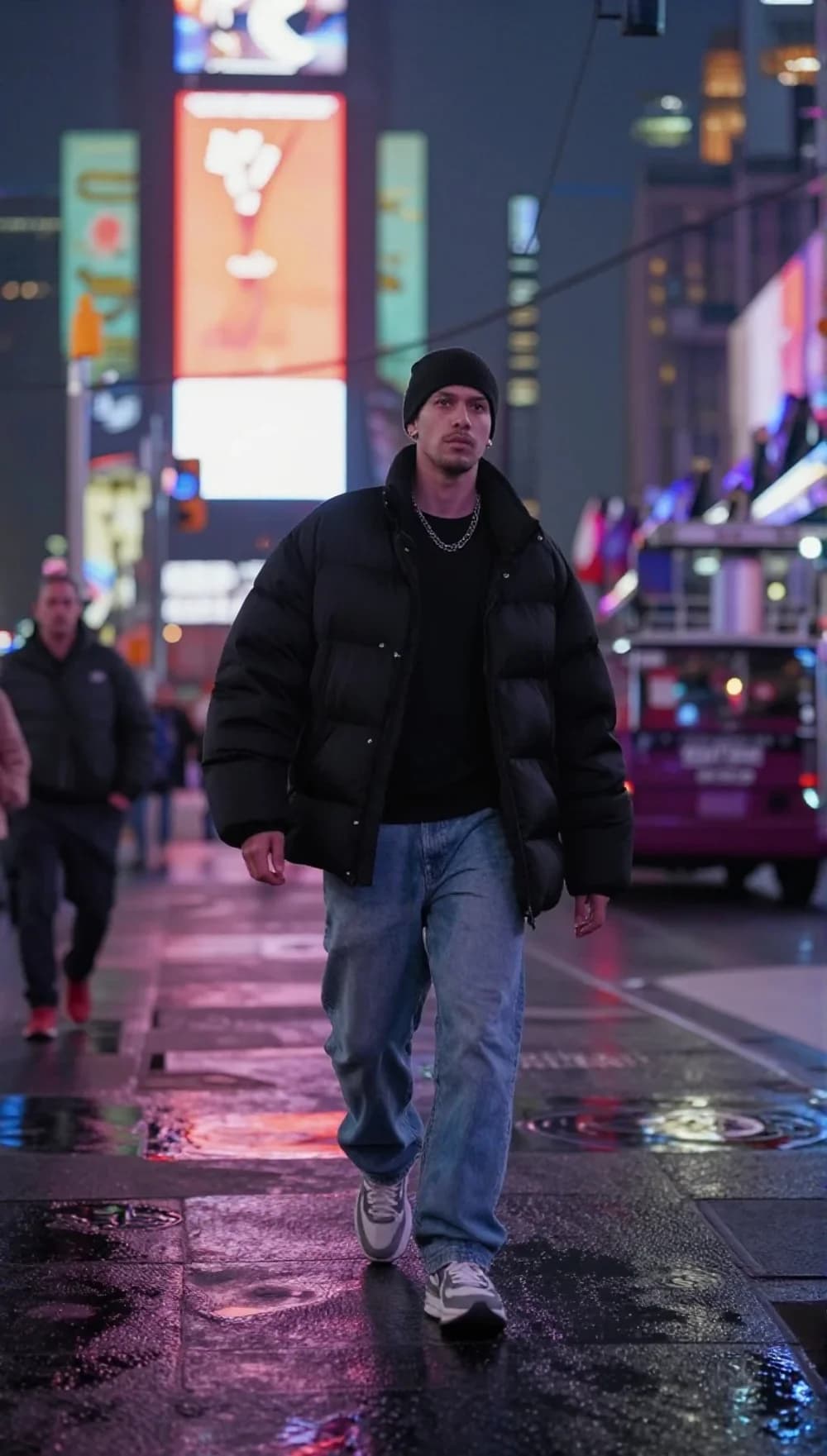
Explore different creative directions in one workspace. Adjust the framing for your intended format, compare versions and keep developing the ones that work.
Turn a travel memory or a personal idea into a visual direction for a short post. Define the mood, the setting and the moment you want people to notice.
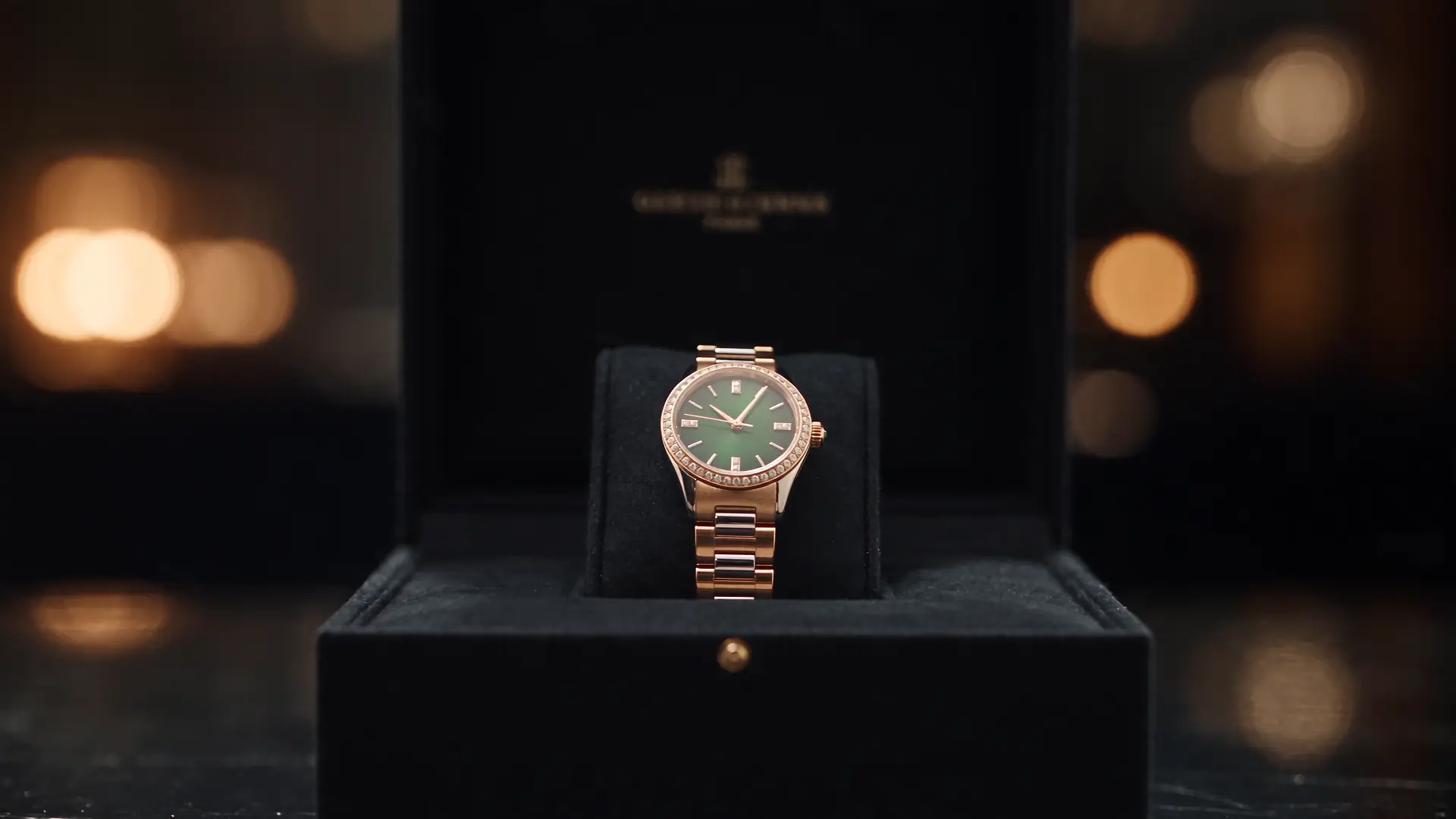
Explore a studio setup, material details or a new setting for your product. Use the images and clips as creative drafts, then check the product details before publishing.
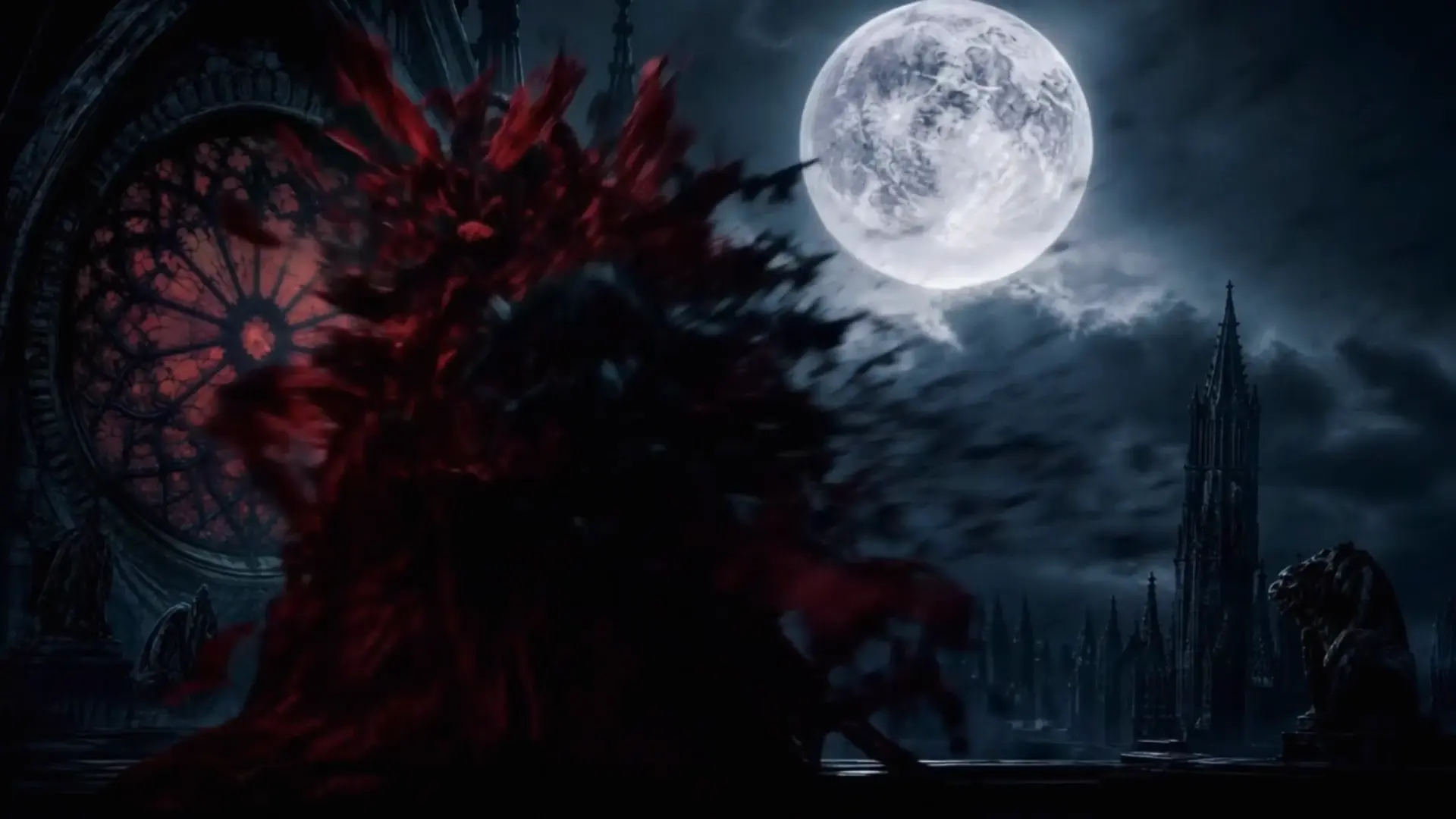
Develop a character, test a location or explore the atmosphere of a scene. Use visual drafts to work through your framing and story ideas.
Select image or video, then choose a model and creation mode. The available settings follow your selection.
Write about the subject, setting, light and style. Add a reference image when your selected mode supports it.
Check the credit estimate before generating. Open History to view the result, then use it again and adjust your next creation.
استكشف التطبيقات التي تثير اهتمامك واعثر على الإلهام لإبداعك القادم.
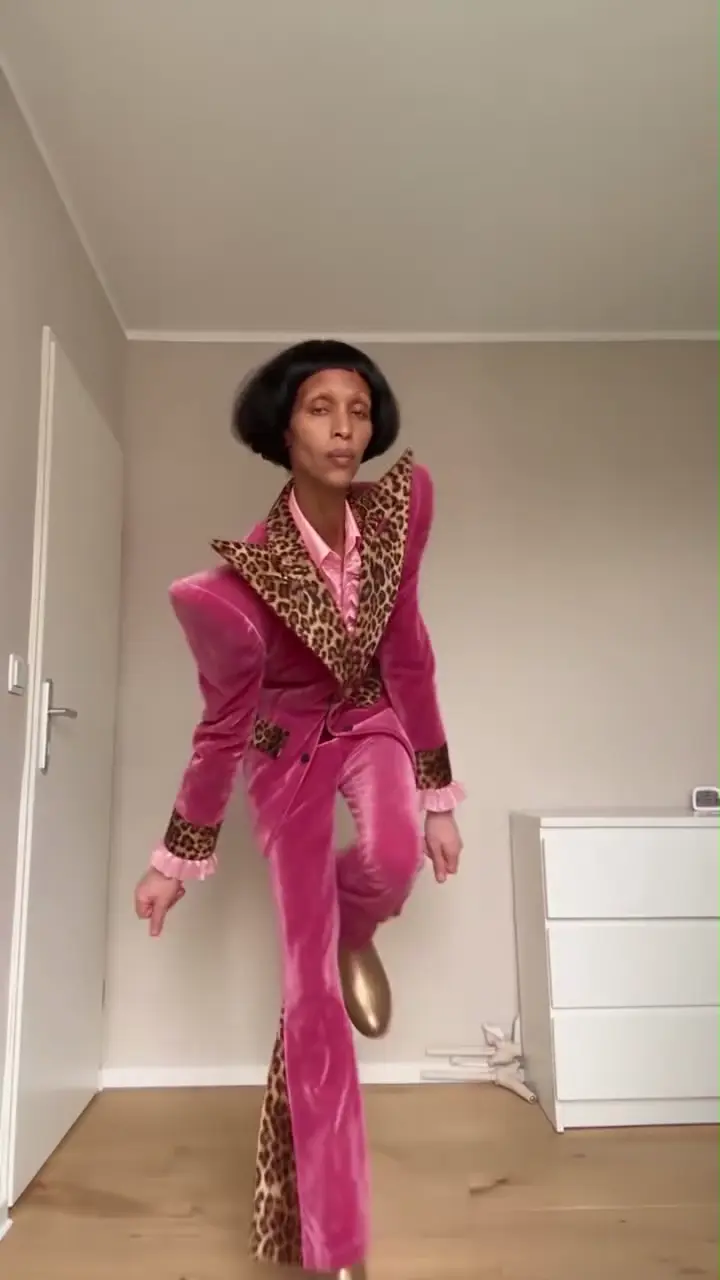
تحويل صورة شخصية أو صورة حيوان أليف إلى فيديو رقص. اختر النمط واجعل الحركة خاصة بك.
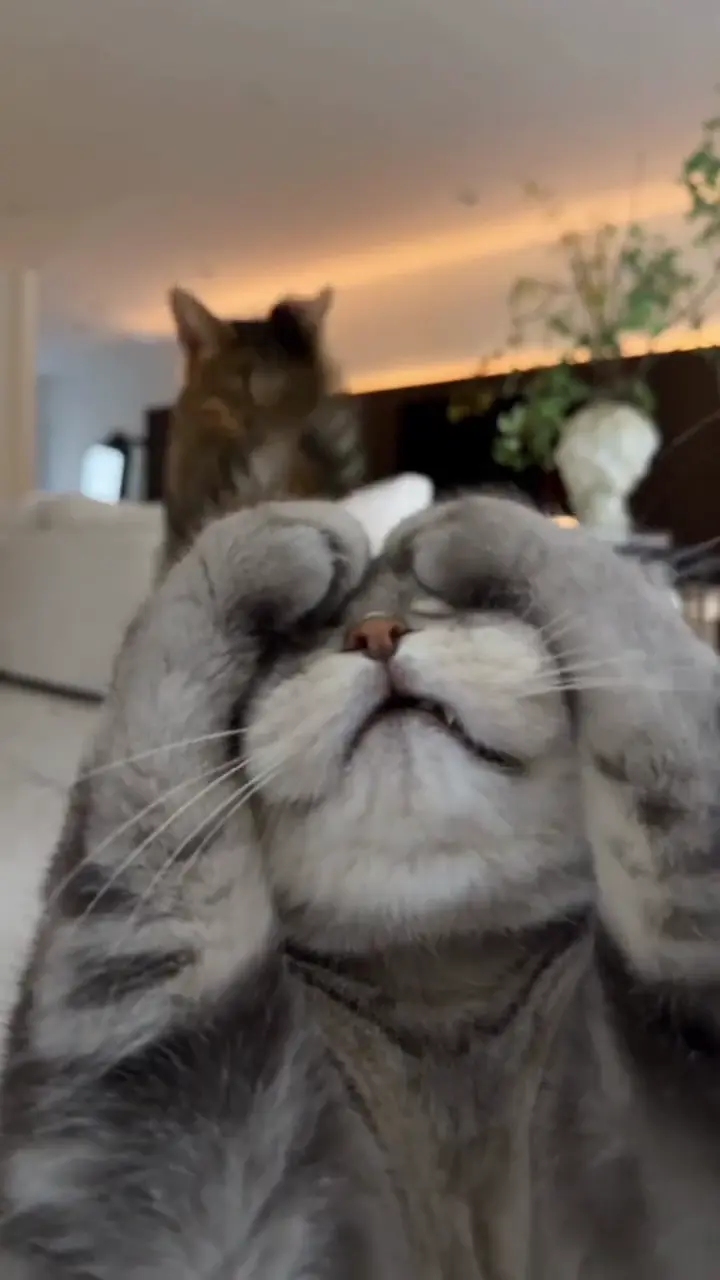
قم بتحريك قطتك باستخدام حركات رفع المخالب المرحة أو الحركات المستوحاة من Toc Toc.
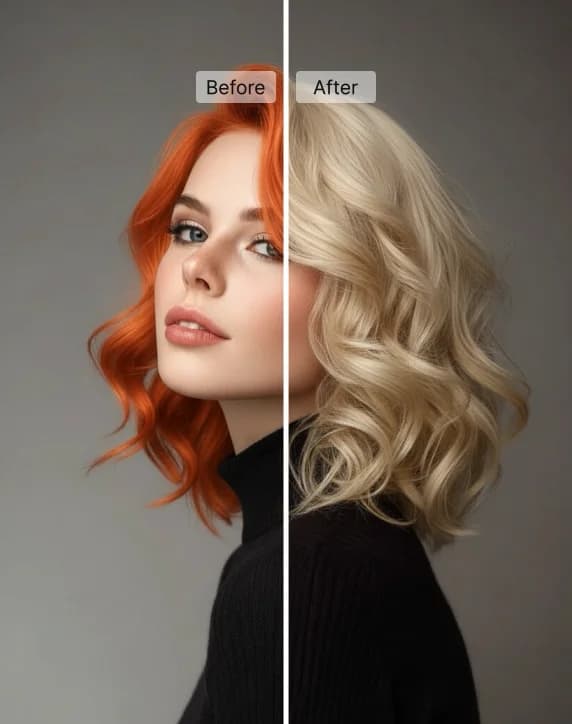
جرّب لون شعر جديدًا على صورتك باستخدام درجات جاهزة أو لون مخصص.
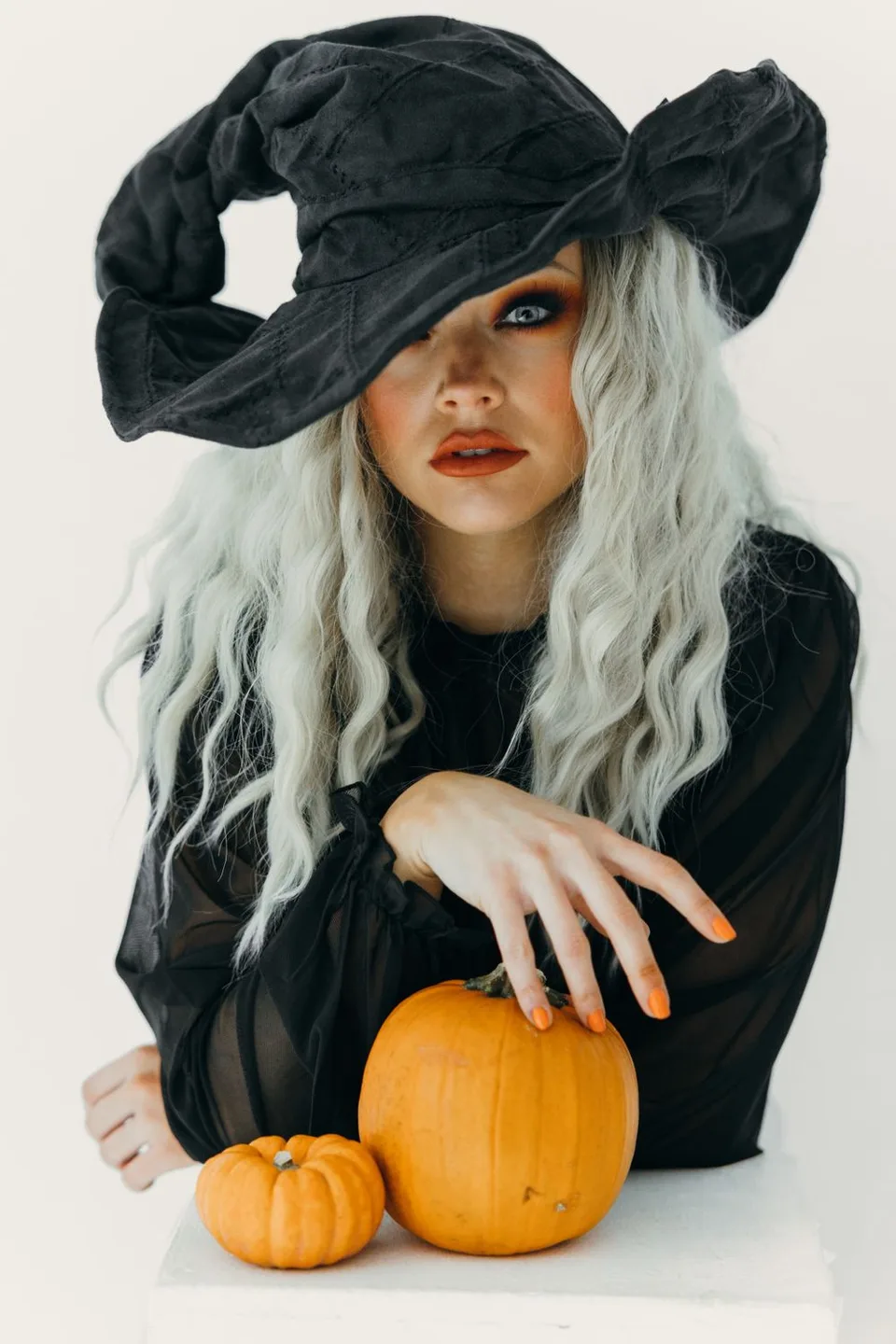
جرّب ثمانية أزياء باستخدام صورتك، أو أنشئ فيديو لساحرة تركب مكنسة.
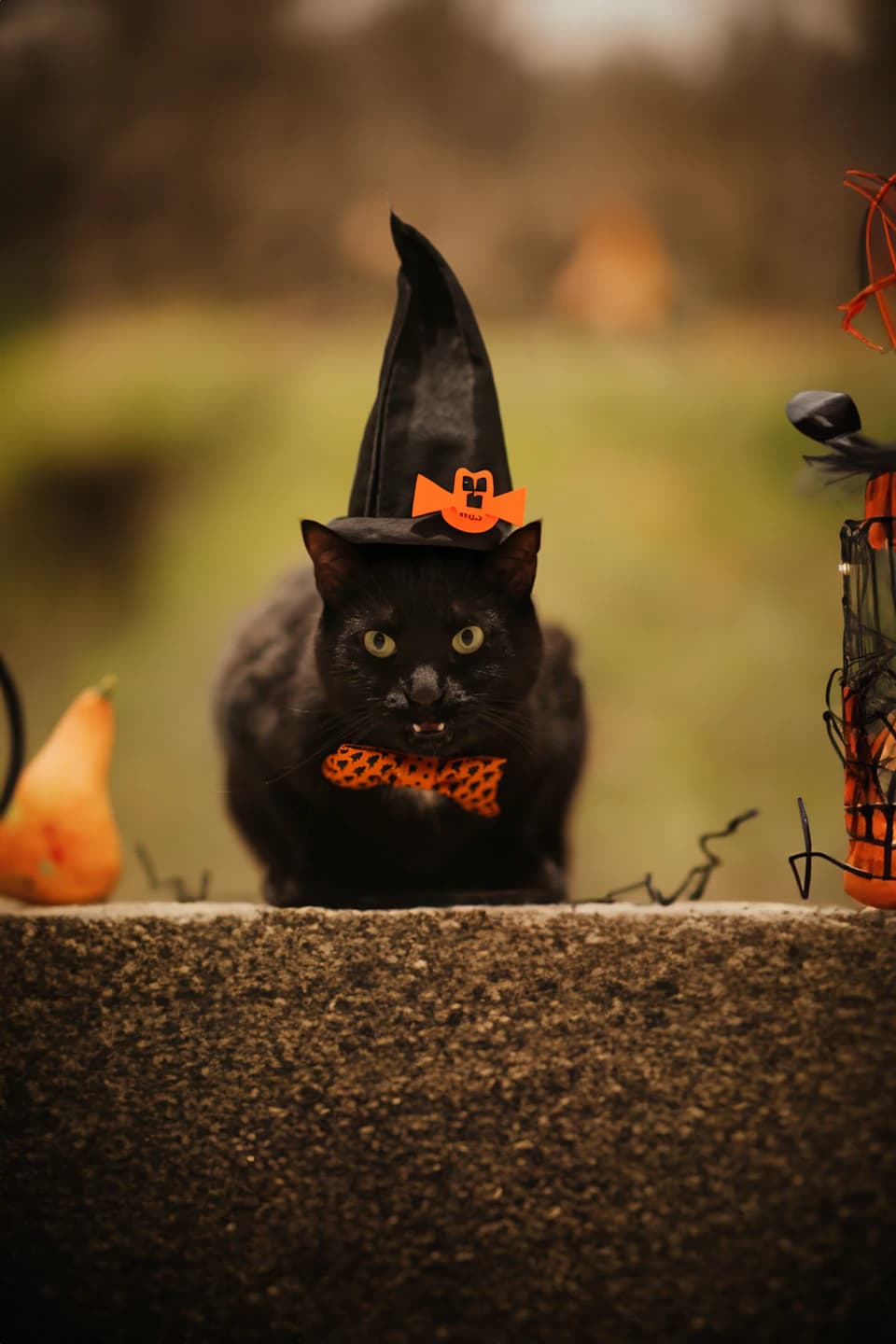
ألبس كلبك أو قطتك ثمانية أزياء هالوين مبتكرة.
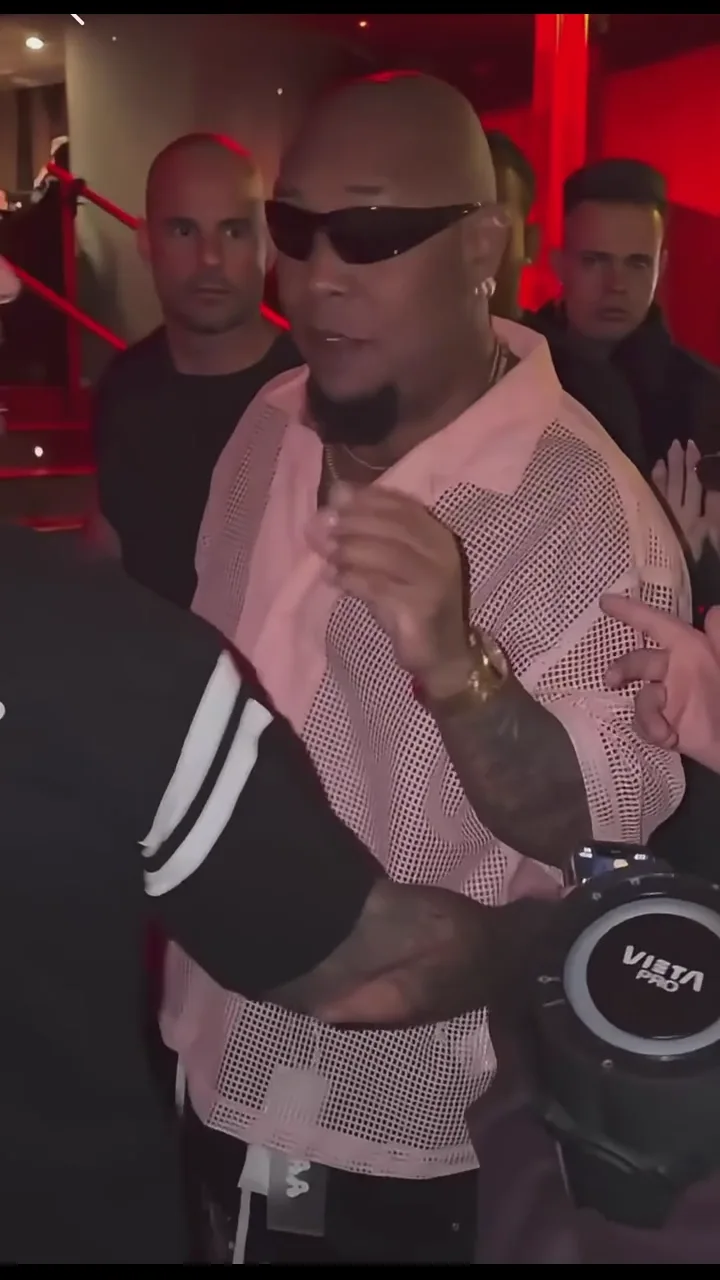
أنشئ فيديو فريستايل خاصًا بك من صورة شخصية.
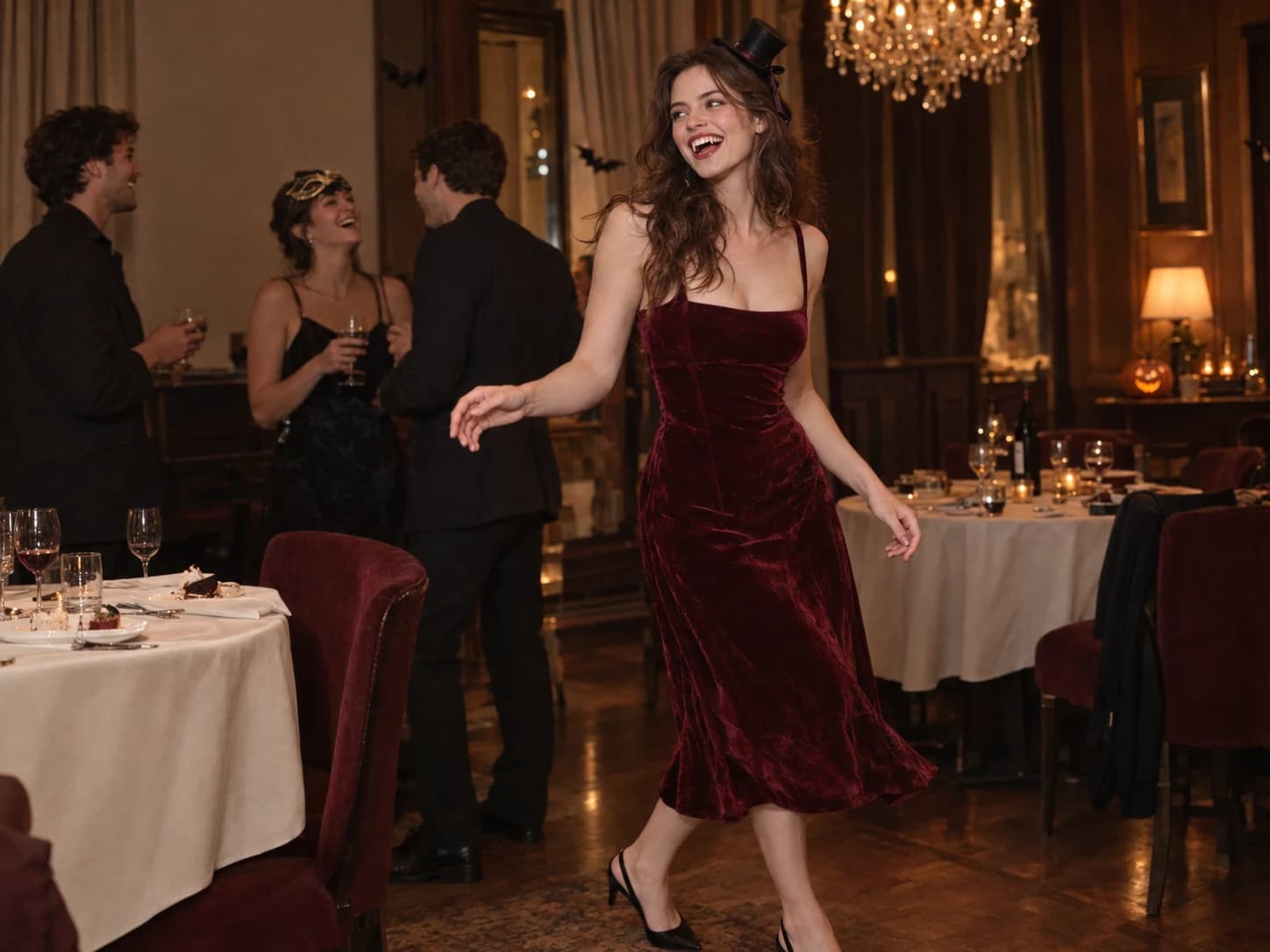
حوّل صورة إلى فيديو حفلة Burning Bridges خاص بك.
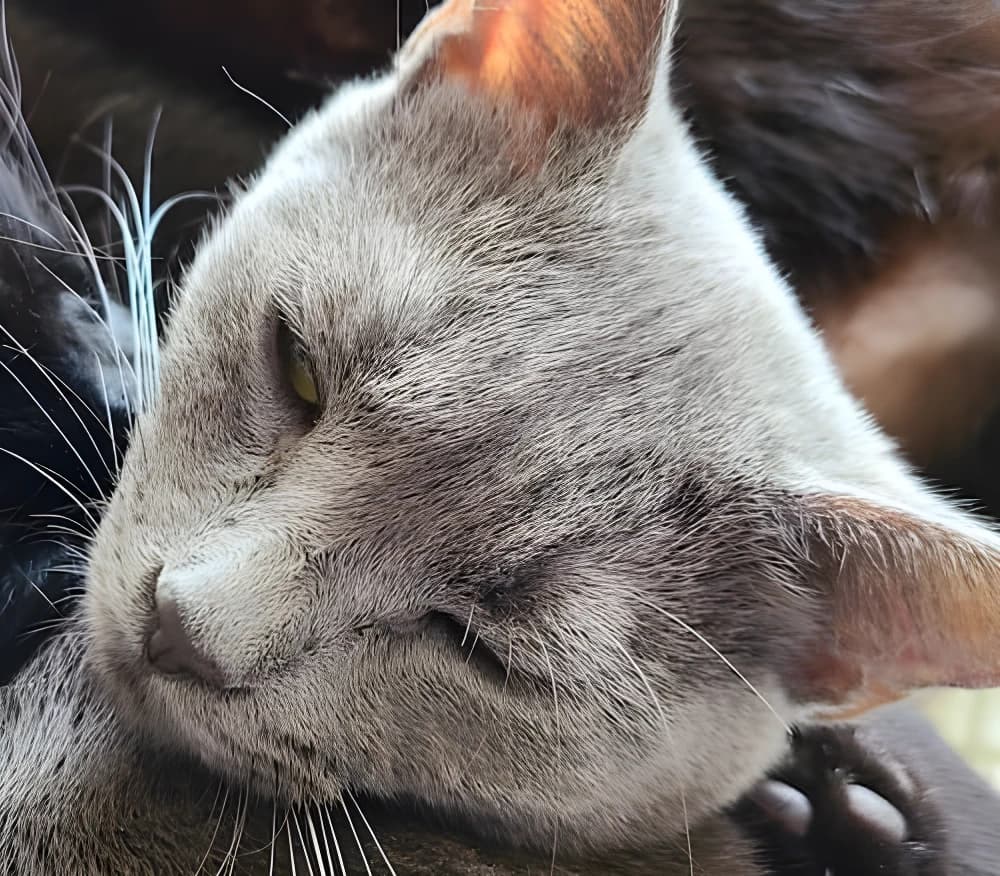
كبّر الصور مع خيار تحسين الوجوه لإظهار التفاصيل بوضوح أكبر.
Explore image and video models in the AI image and video generator. Start with your source material and choose the model that fits your creative task.
GPT Image 2 يجمع بين فهم التعليمات التفصيلية وتحرير الصور لإنشاء صور المنتجات والرسوم والإعلانات.
Nano Banana Pro يجمع بين وضوح النص وتوليد الصور المفصّلة للملصقات ورسوم المعلومات ونماذج المنتجات.
يجمع Seedream 5 Pro بين الإضاءة الواقعية وعرض النصوص وتحرير الصور لإنشاء صور شخصية وملصقات وصور المنتجات.
FLUX.2 يجمع بين الإضاءة المفصّلة والتحكم في التكوين وتنسيق النص لتصوير المنتجات والتصميم الجرافيكي.
Seedance 2.5 يجمع بين إخراج لقطات متعددة والمراجع البصرية والصوتية لمشاهد مترابطة وتحكم في الصوت.
WAN 3.0 يجمع بين الصورة السينمائية والتوجيه بالمراجع والتحكم في الكاميرا لفيديوهات ذات حركة متناسقة.
MiniMax H3 يجمع بين أداء الشخصيات وحركة الكاميرا والتحكم في الأصوات لفيديوهات سردية.
Gemini Omni يتيح تحرير الفيديو بالحوار، مع مراجع بصرية للعناصر والحركة والمشاهد.
Yes. Text-to-image and text-to-video modes start with a prompt. Image editing and image-to-video modes require reference material according to the selected model.
Start with your task: generating an image, editing an image or creating a video. Choose an available model for that mode and check its settings. Supported inputs and output options vary by model.
Start with the subject and setting, then add the light, style or camera direction. For video, focus on one main action, such as a person looking toward a window while the camera moves closer. Change one detail at a time to make versions easier to compare.
The AI image and video generator shows an estimated credit cost on the generation button based on your model, settings, and quantity. Check it before submitting; changing these choices can change the cost.
Open History in this workspace to review your generation tasks and results. Use the available actions on a completed result to download it or create again.